

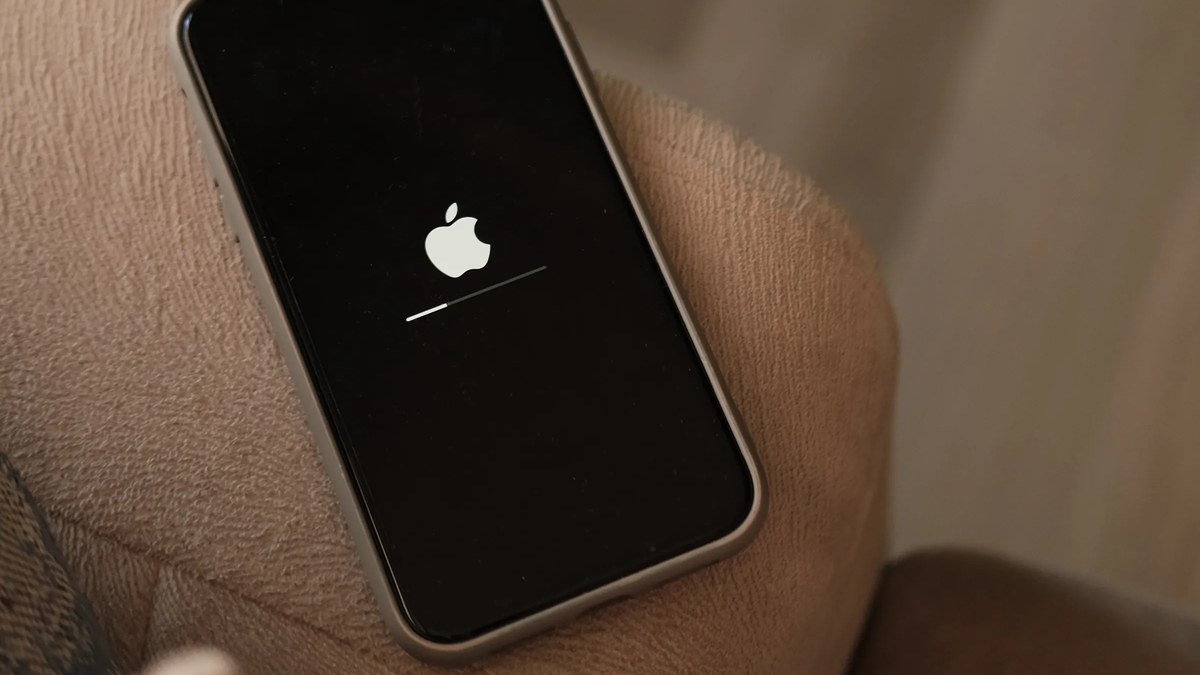
Your iPhone won’t update, and the screen hasn’t changed in an hour. Maybe it froze on “Preparing Update,” maybe it says “Update Requested” with a spinning wheel, or an error pops up when you tap Download and Install. The good news: your phone is almost never broken. A stuck update has a handful of causes, a corrupted update file, too little free storage, a flaky connection, or Apple’s servers buckling under release-day traffic. Most Google guides cover the basics but skip the step that matters most, reading your exact screen so you try the right fix first.
Read More: iPhone Stuck on Apple Logo? 9 Fixes to Try Now
Read Your Screen: Which Stage Is Stuck?
The right fix depends on the exact screen in front of you. Match yours first.
- “Update Requested” (spinning wheel): the download is queued. Apple’s servers are slow, or your connection dropped.
- “Downloading” (bar crawls or restarts): unstable Wi-Fi or a file that corrupted on the way down.
- “Preparing Update” (frozen bar): the most common one. Corrupted cached file, tight storage, or a verification timeout.
- “Verifying Update” (frozen bar): a server-side signing check, normally 5 to 20 minutes. Past an hour, it’s a network or server problem.
- An error code (3194, 4013, and friends): each code points at a specific cause. See Fix 7.
- No update offered at all: your iPhone may not support the new iOS, or a beta profile or work policy is blocking it (Fix 5).
The 60-second check: plugged into power? On real Wi-Fi, not a hotspot, with the VPN off? At least 6 GB free? If all three are yes and the bar hasn’t moved in over an hour, start at Fix 1. A bar that creeps forward, even slowly, is working, so leave it alone.
Fix 1: Delete the Cached Update File and Re-Download It
This is the fix that works most often. Your iPhone downloaded several gigabytes of iOS, one piece failed the integrity check, and the phone keeps retrying the same bad file. Deleting it forces a clean download. Go to Settings, General, iPhone Storage, find the file labeled “iOS 18.x,” tap it, tap Delete Update, and confirm. Then go back to Software Update and download again on a stable connection. If there’s no update file in the list, the download never finished, so skip to Fix 3.
Fix 2: Give It Real Power, Not a Dying Battery
Apple won’t run a major update unless the battery is at 50 percent or the phone is on a charger, and below 20 percent it may refuse to start. A weak battery can also stall the update silently. Plug into a wall outlet with an MFi-certified cable, not a laptop USB port, which often can’t supply steady power. Cheap gas-station cables cause tiny power dips that freeze the update at 80 or 90 percent with no error. Keep it plugged in for the whole process.
Fix 3: Free Up 6 to 10 GB of Real Space
Your iPhone needs working room to unpack and install an update, roughly 6 to 10 GB for a major iOS release. The guides that say “free up some space” never give you the number, so people delete two apps, retry, and stall again. Check yours at Settings, General, iPhone Storage. The biggest quick wins are nearly always the same: screen recordings, WhatsApp chat media, downloaded Netflix or podcast episodes, and the Recently Deleted album, which holds “deleted” photos for 30 days. Empty that trash first. For the full cleanup, see Phone Storage Full? 9 Fixes That Free Up Space. If the phone is frozen and you can’t open Settings, jump to Fix 8, since a computer update doesn’t need your iPhone’s free space.
Fix 4: Check Apple’s Servers and Try at Off-Peak Hours
Sometimes the problem isn’t your phone. In the first 48 hours after a major iOS release, millions of devices hit Apple’s servers at once, and “Preparing Update” can sit still for an hour with everything on your end fine. Before deleting things, check Apple’s System Status page and look at the iOS Software Update row. Green means the problem is yours; yellow or red means wait. If the servers are slammed, fix it with timing: try overnight, roughly 2 to 5 AM Eastern, when US traffic is lowest. Don’t hammer retry every ten minutes; each attempt re-queues your phone behind everyone else.
Fix 5: Kill the Hidden Blockers
A few settings can silently block updates while everything else works fine:
- VPN: an active VPN reroutes update traffic and can time out the verification handshake. Disconnect it at Settings, General, VPN and Device Management until the update finishes.
- Beta profile: an old developer or public beta profile can block the public release from installing. Remove it in the same menu, then restart.
- Screen Time: Content and Privacy Restrictions can gray out Software Update entirely. Check Screen Time, Content and Privacy Restrictions.
- Work or school device (MDM): managed devices often block updates until IT approves them; don’t remove the profile yourself.
- Date and time: at Settings, General, Date and Time, confirm Set Automatically is on. A wrong date breaks Apple’s certificate checks.
Fix 6: Switch Your Connection Instead of Fighting It
Updates need a steady connection, not just a connected one. Move closer to the router, or forget the network and rejoin it. Skip hotspots for major updates. If your Wi-Fi is genuinely unreliable, a network-settings reset (Settings, General, Transfer or Reset iPhone, Reset, Reset Network Settings) clears corrupted configurations, but it wipes your saved Wi-Fi passwords too, so have them handy. Or skip the Wi-Fi battle with Fix 8.
Fix 7: Decode the Error Code
- 3194 or 3014: the phone or computer can’t reach Apple’s servers. Check the network, turn off the VPN, and check that security software isn’t blocking Apple’s servers.
- 4013, 4014, 4005, or 9: a USB or cable problem. Swap to a different MFi-certified cable and port, and restart both devices.
- “Unable to Check for Update”: a network or Apple server issue. Toggle Wi-Fi off and on, disable the VPN, wait an hour, retry.
- “An error occurred installing”: the file is bad. Delete the update file (Fix 1), free up space (Fix 3), and retry. If it fails twice, go to Fix 8.
Fix 8: Update With a Computer (the Heavy Hitter)
When over-the-air updates keep failing, a computer update is the most reliable method there is. It downloads a completely fresh copy of the full iOS firmware and installs it directly, bypassing the Wi-Fi variable, the corrupted cached file, and the storage problem in one move. On a Mac, open Finder. On Windows or an older Mac, open iTunes or the Apple Devices app. Connect with a real data cable, cheap charging-only cables fail here, select the phone, and click Update. Not Restore. Update reinstalls the iOS files and keeps your data. Give it the full 15 to 30 minutes without unplugging. If the phone doesn’t appear at all, try a different cable and port.
Fix 9: Recovery Mode Update (Last Resort, Data Safe)
Use this only if the phone is frozen, black, or unresponsive to everything above. Connect it to the computer with Finder or iTunes open. Press and quickly release Volume Up, press and quickly release Volume Down, then press and hold the Side button past the Apple logo until the cable-and-computer Recovery Mode screen appears. Choose Update, not Restore. Update reinstalls iOS without touching your data; Restore erases everything. If the phone has gone completely dark, these revival steps come first: Phone Won’t Turn On? 9 Fixes That Revive It. If the Update option fails twice in Recovery Mode, stop. That’s a hardware issue, and the free Apple Store visit below is your next step.
Simple idea: turn on Automatic Updates at Settings, General, Software Update, Automatic Updates, with Install iOS Updates enabled. Your iPhone will install big releases overnight while plugged in and on Wi-Fi, dodging release-day server traffic entirely.
What the fixes cost in the US:
- Every fix in this guide: $0.
- Apple Genius Bar software support: free, even out of warranty. Bring the phone charged to at least 30 percent.
- Third-party “iOS repair” tools: $30 to $50 a month. You don’t need them; Fix 8 and Fix 9 do the same job free.
- A new MFi-certified cable if yours is flaky: $10 to $15.
- Out-of-warranty hardware repair, if the phone is truly broken: roughly $129 to $379 by model.
Conclusion
Most iPhones that won’t update aren’t broken. They’re holding a corrupted update file, sitting in a release-day server queue, or blocked by a VPN, a beta profile, or a battery that dipped too low. Work the list in order and you’ll land on the right fix in minutes.
If everything here fails, including the Recovery Mode update, book the free Genius Bar appointment. At that point it’s a hardware fault or an install that needs Apple’s own tools, and a technician can tell you which in about fifteen minutes.
