

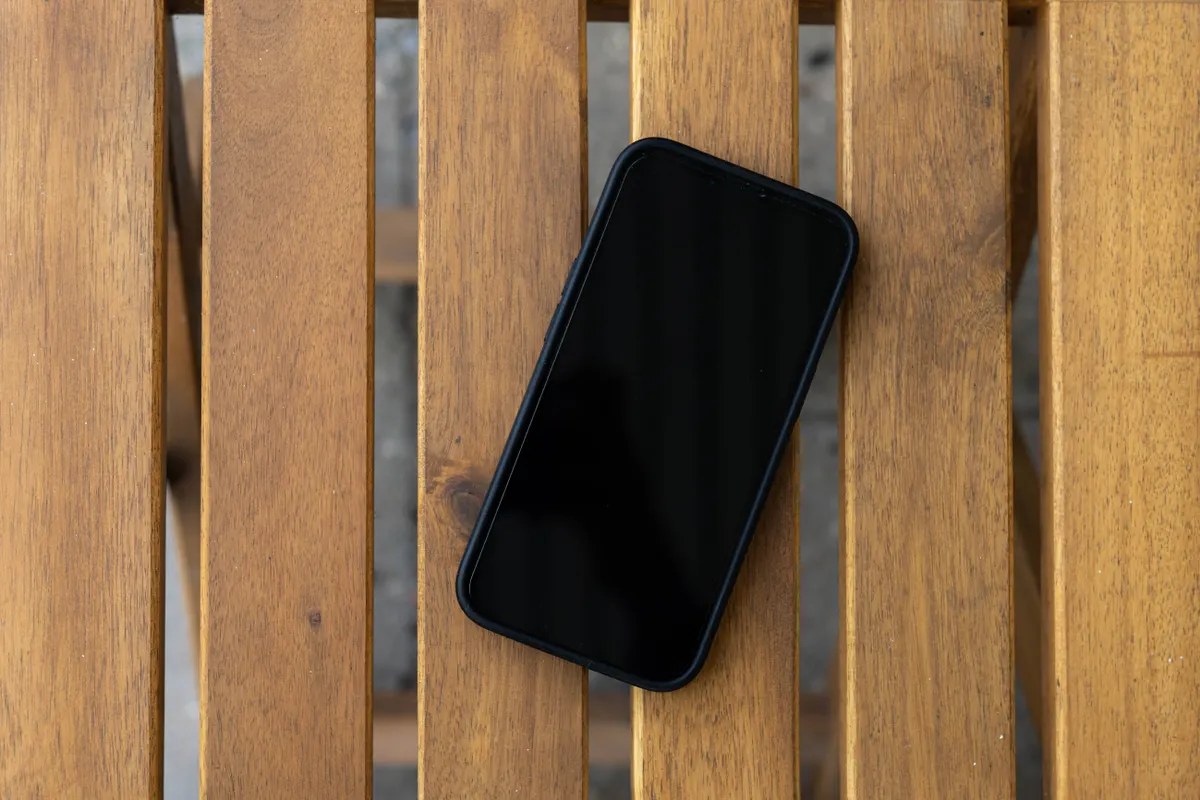
You press the power button, hold it, press it again, and nothing happens. No logo, no vibration, no flicker of a screen. Before you start pricing replacements, know this: most phones that look completely dead are not dead at all. A battery stuck in a protection state, a frozen system, or a dirty charging port sits behind most of these cases, and you can fix all three at home.
This guide runs the fixes in the order a repair tech would try them, from two-minute checks to the point where a professional should take over.
Read More: Phone Dies at 20%? 9 Fixes That Actually Work
First, Figure Out How Dead It Really Is
Sometimes the screen is dead while the phone works fine underneath. Call your phone from another phone. If it rings or vibrates, the phone is on and you have a screen problem, not a power problem. Charging will not help.
Plug the phone into a computer with a data cable. If the computer makes its device-connected sound, the internals are alive. No computer handy? Shine a bright flashlight at the screen in a dark room. A broken backlight leaves a working display nearly invisible, and the flashlight test exposes it.
Fix 1: Charge It Longer Than You Think
A battery drained to zero enters a protection state where the phone ignores every button press until it has received several minutes of steady power. Ten minutes is not enough.
Plug the phone into a real wall charger, not a laptop USB port or a weak car charger. Set a 60-minute timer and walk away. If the charging icon or logo appears during the hour, the battery was simply flat and the phone is fine.
Simple idea: mark the start time, plug in, and go make coffee. Most “dead” phones wake up on their own before your hour is up.
Fix 2: Rule Out the Cable, the Brick, and the Outlet
USB-C and Lightning cables are notorious for breaking right at the plug, inside the housing where you cannot see it. Try a different cable and a different wall adapter, ideally one you know works with another device.
Test the outlet too. Plug a lamp into the same outlet, since tripped breakers and dead power strips have “killed” plenty of phones. If your phone supports wireless charging, try that. A wireless charger feeds power through the back of the phone and bypasses the charging port entirely. If the phone wakes up on a wireless pad but not on a cable, the port is the problem and the phone is fine. More cable-and-port troubleshooting lives in Phone Not Charging? 9 Fixes That Actually Work.
Fix 3: Force Restart It the Right Way
A phone can look completely dead when it is just frozen solid. The normal power press does nothing because the software is stuck, so you need a force restart, a hardware-level reboot that works even when the operating system is locked up.
For iPhone 8 and later: quickly press and release Volume Up, quickly press and release Volume Down, then hold the Side button until the Apple logo appears, which can take 10 to 20 seconds. For most Android phones, including Samsung and Pixel: hold Power and Volume Down together for 15 to 20 seconds.
Do it while the phone is plugged in, since a frozen phone with a nearly empty battery can die mid-boot. If the first attempt fails, wait 30 seconds and try again.
Fix 4: Clean the Charging Port
A port packed with pocket lint stops the cable from seating, and a cable that does not seat does not charge. This is a leading cause of phones that will not turn on after “charging all night.”
Look inside the port with a flashlight. If you see gray fuzz around the pins, that is your culprit. Scrape it out gently with a wooden or plastic toothpick, then finish with a short blast of compressed air. Never use a metal pin or paperclip inside the port. Metal can short the pins and turn a cleaning job into a repair bill. The telltale sign: a cable that wiggles or only charges at an angle almost always means a lint-filled port.
Fix 5: Check the Power Button Itself
Power buttons wear out, dust gets under them, or a thick case presses on them just enough to confuse the phone. If the button feels mushy or makes no click, suspect the button, not the phone.
Take the case off first. Misaligned case cutouts cause a surprising share of button problems. Then press the button slowly and feel for the click, trying the edge of your fingernail.
Some phones power on automatically when connected to a charger, with no button press needed. Plug the phone in and leave the button alone for a few minutes. If the screen lights up on its own, the button is the problem.
Fix 6: Give It a Temperature Check
A phone that got very cold, left in a car overnight or dropped in snow, may refuse to charge until it warms up. Cold raises the battery’s internal resistance, and safety circuits block charging below roughly freezing.
Bring the phone indoors and let it warm to room temperature naturally, which takes 30 to 45 minutes. Do not put it on a radiator or blast it with a hair dryer. If your phone went from freezing cold to refusing to turn on, warm it up first, then start Fix 1 from the top.
Fix 7: Look for Water Damage, Then Stop Charging
If your phone took a swim or got rained on, water may be shorting something inside. Do not keep trying to charge it. Every attempt pushes electricity through wet components and can turn a survivable splash into a fried board.
Eject the SIM tray and look inside the slot for the liquid contact indicator, a small white dot. If it is red or pink, the phone has been exposed to liquid. Remove the case and let it dry in a ventilated spot for 24 to 48 hours. Skip the bowl of rice. Rice does almost nothing, and rice dust can get into the ports. If it still will not turn on after a full dry, a professional with an ultrasonic cleaner needs to handle it.
Fix 8: Match the Fix to What Happened Before It Died
If it died right after a software update, suspect corrupted system software. Boot into recovery mode (iPhone: connect to a computer and hold the force-restart sequence until the recovery screen appears; Android: hold Power and Volume Up during startup) and choose Update, not Restore, so your data survives.
If it sat unused in a drawer for months, the battery has deep-discharged. Leave it on a wall charger overnight, a full 8 hours, before concluding anything.
If the screen shows a logo and then loops, the phone has power but corrupted boot files. Try recovery mode, or check Phone Storage Full? 9 Fixes That Free Up Space, since a failed update from lack of space is a common cause.
If the battery looks swollen or the screen is lifting, stop everything and do not charge it. A swollen battery is a fire risk. Put it somewhere non-flammable and take it to a repair shop or recycler right away.
Fix 9: Know When It Is a Hardware Problem
If every fix above has failed, you are probably looking at failed hardware: a dead battery, a failed charging chip, or internal damage from a forgotten drop.
Check your warranty before paying for anything. Apple’s coverage checker and Samsung’s support site will tell you in a minute whether the phone is still covered. Then check your backups from another device. Sign in to iCloud.com or your Google account on a computer and confirm your photos synced. If everything backed up, the repair-or-replace decision gets much easier.
Here is what professional repair typically costs in the US:
- Battery replacement: $49 to $99 at Apple (out of warranty), $60 to $100 at independent shops
- Charging port repair: $49 to $149 depending on the model
- Screen replacement (if the flashlight test points at the display): $129 to $379 at Apple, often less at third-party shops
- Logic board repair: $150 to $400, worth a quote before committing
- Data recovery from a truly dead phone: $300 and up, with no guarantee
If the quote costs more than the phone is worth, replace it instead.
Conclusion
A phone that will not turn on is usually not a dead phone. It is a flat battery that needs a full hour, a frozen system that needs a proper force restart, or a port full of pocket lint. Work the fixes in order, give the charger real time, and test your assumptions with the call and flashlight checks.
If you reach the end with no signs of life, check the warranty, check your backups, and let a repair tech take it from there.

2 Comments
Pingback: iPhone Stuck on Apple Logo? 9 Fixes to Try Now
Pingback: Phone Touch Screen Not Working? 9 Fixes That Restore It