

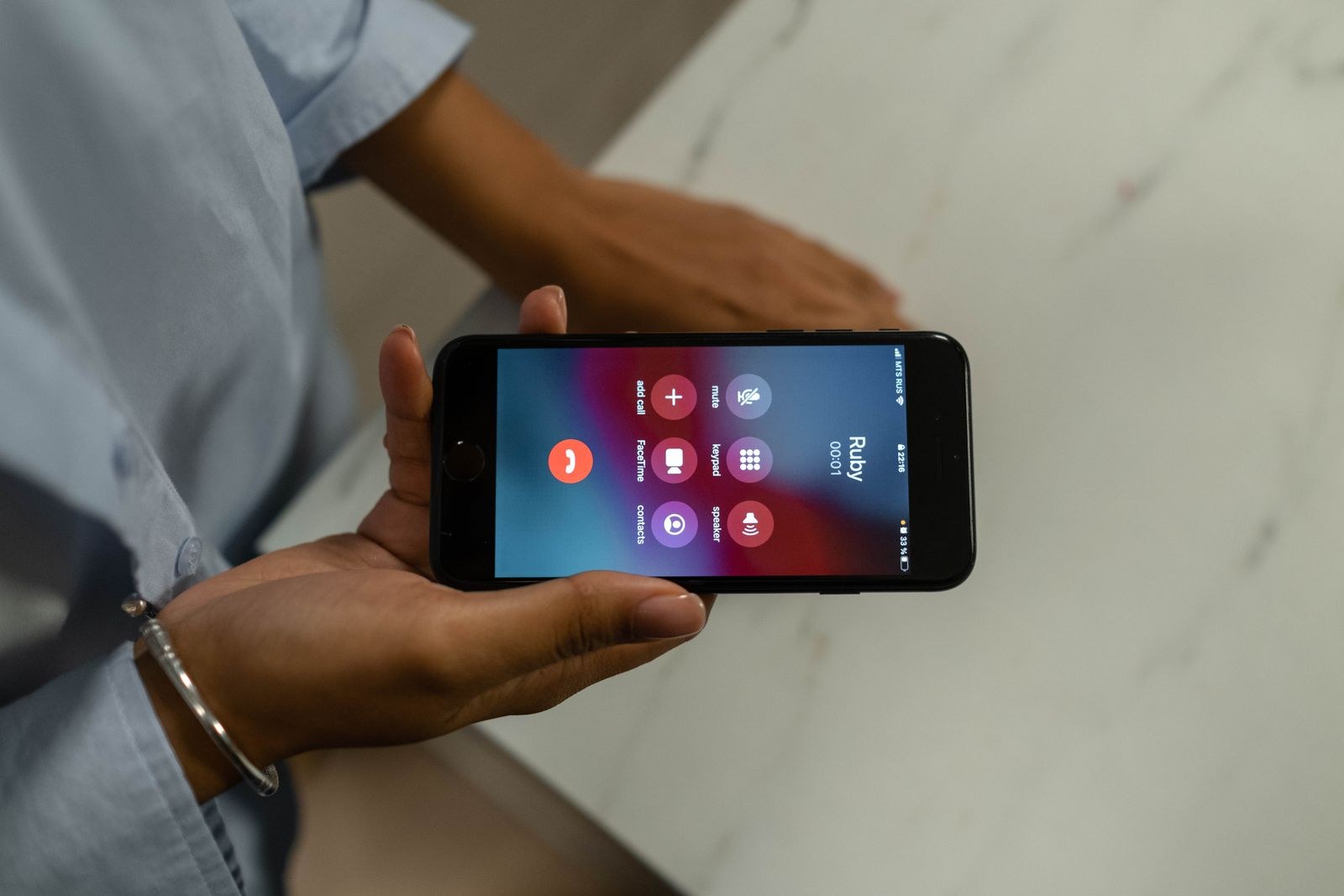
Missing calls is miserable when your phone never rings. You sit two feet away from it, the screen stays dark, and an hour later you discover three missed calls and a voicemail from someone who will not wait. If your phone is not ringing, the fix is almost always a setting you flipped without noticing, not a broken device.
This guide covers the nine most common reasons a phone goes silent, with exact steps for iPhone and Android. You get the usual suspects plus the sneaky ones most tech sites skip, like scheduled Focus modes that turn themselves on and carrier spam filters that eat legit calls. Work through them in order. Most people find the culprit by fix number four.
Read More: Blocked on iPhone? 7 Signs Someone Blocked Your Number
Start With a 30-Second Diagnosis
Before you touch a setting, run three quick tests. First, have someone call while you watch the phone. If the screen lights up but stays silent, the ringer is the problem. If nothing appears, the call never reaches the phone, which points to network, forwarding, or blocking.
Second, test with vibration on. On iPhone, go to Settings, Sounds and Haptics, and enable Vibrate on Ring. On Android, go to Settings, Sound and vibration, and turn on call vibration. Buzz but no sound means the speaker or ringtone is the weak link.
Third, plug in wired earbuds and take another test call. If the ring plays through the earbuds, your phone’s speaker is likely damaged, and you have narrowed the whole mystery to one component.
Simple idea: save one contact named “Ring Test” using your own second number or a family member’s. After every settings change below, have them call you. It takes ten seconds and tells you instantly which fix worked.
1. Turn Off Do Not Disturb and Its Sneaky Scheduled Versions
Do Not Disturb is the number one cause of silent phones. On iPhone, swipe down from the top-right corner and make sure the Focus tile is off. On Android, swipe down and check the Do Not Disturb tile.
Here is what most guides skip: scheduled versions that turn themselves on. On iPhone, go to Settings, Focus, and open each mode. The Sleep focus runs on a nightly schedule by default, and Smart Activation can switch a focus on at a location or during calendar events. If your phone only goes silent at work or at night, a schedule is the culprit. On Android, go to Settings, Sound and vibration, Do Not Disturb, Schedules, and delete anything you do not remember creating.
2. Check the Right Volume Slider (Yes, There Are Several)
Your phone has separate sliders for ringer, media, and alarms, and the side buttons may not control the one you think. On Android, open Settings, Sound and vibration, and drag Ring volume up. Many Android phones default the volume buttons to media volume only.
On iPhone, go to Settings, Sounds and Haptics, and check the Ringer and Alerts slider. Then look at “Change with Buttons” right below it. When it is on, the side buttons adjust the ringer when no audio plays. When it is off, they adjust media only, which means your ringer can sit at zero while everything else sounds fine.
3. Flip the Silent Switch and Blame Face ID
iPhone users, check the physical Ring/Silent switch above the volume buttons. If you see orange, the phone is silenced. This switch is tiny and flips easily in a pocket or bag.
Now the sneaky one: Attention Aware Features. When your iPhone sees your face looking at it, it lowers the ringtone volume, assuming you noticed the call. In practice, your phone barely whispers while you stare right at it. If calls seem quiet only when you are holding the phone, go to Settings, Face ID and Passcode, and turn off Attention Aware Features.
4. Stop Your Carrier From Eating Your Calls
iPhone’s Silence Unknown Callers sends every call from a number not in your contacts straight to voicemail with no ring. Check it at Settings, Phone, Silence Unknown Callers. If you are waiting on a doctor’s office, delivery driver, or recruiter, turn it off.
The bigger blind spot is carrier-level spam blocking, which acts before your phone even sees the call. AT&T ActiveArmor, T-Mobile Scam Shield, and Verizon Call Filter can silence numbers they label as suspected spam, and legit numbers get flagged more often than carriers admit. Open your carrier’s app and review the blocked-call log. On the phone, open the Phone app, Settings, Caller ID and spam (Android), and make sure blocking is not set too aggressively.
5. Look at Your Wrist and Your Ears
If any Bluetooth audio device is connected, your phone may send the ring to your earbuds, a speaker, or your car. Disconnect anything you are not using, then run the Ring Test again. On iPhone, watch for CarPlay: if your car is running nearby with the phone paired, calls route through the car system.
The overlooked version is your smartwatch. When an Apple Watch or Pixel Watch is on your wrist, the phone often hands the call alert to the watch. If the watch is in silent or theater mode, the alert dies there. Take the watch off or switch it out of silent mode while testing.
6. Check Forwarding, Blocked Numbers, and That One Quiet Contact
Call forwarding sends every call to another number before your phone can ring. On iPhone, check Settings, Phone, Call Forwarding. On Android, open the Phone app, Settings, Supplementary services, Call forwarding.
Next, check your blocked list: iPhone, Settings, Phone, Blocked Contacts; Android, Phone app, Settings, Blocked numbers. Then the per-contact trap: open the contact, tap Edit, and check their ringtone, because it can be set to None. On Android, a contact can also have “Send to voicemail” ticked by mistake, which silences just that one person.
7. Kick Airplane Mode and Reseat the SIM
Airplane mode sends all calls straight to voicemail, so confirm it is off. A loose or aging SIM card can also drop incoming calls while everything else looks fine. Power the phone off, eject the SIM tray, and seat the card firmly again.
If your phone uses an eSIM or dual SIMs, check the default voice line: iPhone, Settings, Cellular, Default Voice Line; Android, Settings, Network and internet, SIMs. Calls landing on the wrong line never ring the number people dial. Also check your voicemail box: a full inbox makes carriers send new callers straight to a dead end, and clearing old messages fixes that in seconds.
8. Disable iPhone’s Hidden Auto-Answer and Reset Network Settings
On iPhone, go to Settings, Accessibility, Touch, Call Audio Routing, and check Auto-Answer Calls. If this is on, calls connect automatically with no ring. Turn it off and set Call Audio Routing to Automatic.
If nothing has worked, reset your network settings. On iPhone: Settings, General, Transfer or Reset iPhone, Reset, Reset Network Settings. On Android: Settings, System, Reset options, Reset Wi-Fi, mobile and Bluetooth. This clears corrupted network configuration without deleting photos or apps, but you will lose saved Wi-Fi passwords, so use it as a last resort.
9. Restart, Update, and Test the Speaker
Restart the phone. Hold the power button, power off, wait ten seconds, and power back on. Then check for system updates: iPhone, Settings, General, Software Update; Android, Settings, System, System update. Ringtone bugs are common enough that manufacturers patch them. If the phone misbehaves in other ways too, Stop Your Phone Restarting: 9 Fixes That Work covers deeper software fixes.
If calls still will not ring, play a video. Sound from media but silence on calls means it is still a settings problem (revisit fixes 1 through 6). No sound at all means the speaker is damaged, usually from a drop or water. Here is what that costs in the US:
What a hardware repair costs in the US:
- Carrier store basic diagnostic: usually free
- New SIM card swap at a carrier store: free to $10
- Third-party speaker repair (uBreakiFix, local shops): $69 to $129
- Apple out-of-warranty speaker service: $199 to $329 depending on model, or $99 with AppleCare Plus
- Samsung authorized speaker repair: $100 to $250 depending on model
Total: most people spend $0, because the fix is a setting. The repair prices only matter if the speaker test proves the hardware is dead.
Conclusion
Most silent phones are fixed by the first three checks: a scheduled Focus mode you forgot about, the iPhone silent switch, or the wrong volume slider. You also know the hidden ones now, from carrier spam filters to a smartwatch quietly swallowing your calls. Run the 30-second diagnosis first and change one thing at a time.
If the speaker test points to dead hardware, get the free carrier diagnostic before you pay anyone. And if a software fix brings the ring back, allow repeat callers through Do Not Disturb so the next urgent call never goes silent on you.

2 Comments
Pingback: Can't Hear Your Caller? 8 Fixes That Bring Sound Back
Pingback: Phone Alarm Not Going Off? 9 Fixes That Work