

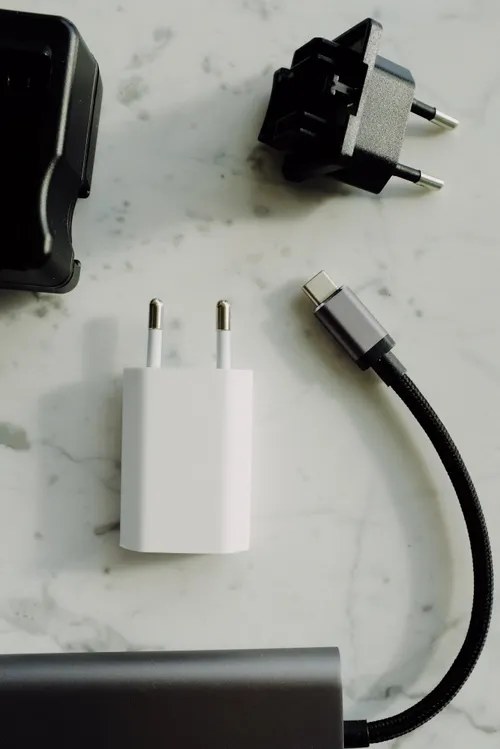
A phone not charging is one of those problems that feels catastrophic at 7am and turns out to be trivial by 7:15. Before you assume the worst, know this: the overwhelming majority of charging failures come down to the cable, the charging brick, lint in the port, or a software glitch, and you can diagnose all of them at home in about fifteen minutes. This guide walks you through the fixes in the order a repair technician would try them, from the five-second checks to the point where you should hand the phone to a professional. It covers both iPhone and Android, including the USB-C iPhones Apple started shipping with the iPhone 15.
Read More: Is Your Phone Hacked? 8 Signs and What to Do
Work Through the Chain in Order
Charging is a chain with five links: the wall outlet, the charging brick, the cable, the phone’s port, and the phone’s software. A break in any one link stops the whole thing, and guessing randomly wastes time. The professional approach is to test each link in order, cheapest fix first, so you never pay for a repair you did not need.
Keep one principle in mind throughout: change only one variable at a time. If you swap the cable and the brick simultaneously and the phone starts charging, you will never know which one was broken, and you will have replaced a perfectly good accessory. Slow, methodical testing beats frantic swapping every time.
Start with the cable and the charging brick
Cables die quietly. The wires inside fray from bending near the connectors long before the outside looks damaged, and a cable that worked yesterday can fail overnight. Inspect yours for kinks, fraying, or discolouration near both ends. If you see exposed wire, stop using it immediately: a damaged cable is a fire risk, not just an inconvenience.
The fastest test is substitution. Borrow a cable you know works and try it with your current brick. If the phone charges, the old cable was the problem. If it does not, keep the borrowed cable and swap the brick next. Charging bricks fail less often than cables, but cheap no-name bricks die regularly, and an underpowered brick (like an old 5W iPhone cube) may charge a modern phone so slowly it looks broken. Use a brick rated for at least 20W for current phones.
One more cable trap to know about: not all USB-C cables carry power equally. Some cheap cables are data-only or limited to slow charging speeds. If you are using a bargain cable with a fast-charging brick, the mismatch alone can explain sluggish or failed charging. A certified cable from a reputable brand is worth the few extra dollars.
Clean out the charging port
This is the single most common cause of charging failure, and the fix takes sixty seconds. Pockets are full of lint, and every time you slide your phone in, a little more gets packed into the charging port. Eventually the compressed lint physically stops the cable from seating fully, and the phone charges intermittently or not at all.
Shine a torch into the port and look for a greyish mat of fluff at the bottom. To remove it, power the phone off first, then gently tease the lint out with a wooden or plastic toothpick. Work around the edges rather than stabbing at the centre, and never use anything metal: a paperclip can short the pins and turn a cleaning job into a repair bill. A quick blast of compressed air afterwards clears the last dust. When you plug the cable back in, it should click in with a satisfying firmness that was missing before.
Simple idea: clean your charging port every couple of months as routine maintenance, the same way you would clear lint from a dryer filter. Thirty seconds of prevention beats a dead phone on a travel day.
Rule out the outlet, the case, and heat
Before blaming the phone, check the power source. Plug a lamp or another device into the same outlet to confirm it is live. Wall outlets do fail, power strips get switched off, and USB ports on laptops or cars often deliver too little power for modern phones. A wall outlet is always the best test source.
Next, take the case off. Thick or poorly designed cases can hold the cable a millimetre away from full contact, which is enough to break the connection. This is especially common with rugged cases that have stiff port covers. If the phone charges without the case, you have found your culprit.
Heat is the silent charging killer most people never suspect. Phones deliberately stop charging when they get too hot, to protect the battery. If your phone has been sitting in direct sun, on a car dashboard, or under a pillow while charging, move it somewhere cool and let it drop to room temperature before trying again. You may also see a temperature warning on screen, in which case the phone is telling you exactly what is wrong.
Try wireless charging as a diagnostic
If your phone supports wireless charging and you can borrow a pad, this is a brilliant diagnostic shortcut. Wireless charging bypasses the charging port entirely. If the phone charges wirelessly but not over cable, you have isolated the problem to the port, the cable, or the brick, and the phone’s battery and software are fine. If it will not charge wirelessly either, the issue runs deeper, likely the battery or system software.
Restart, update, and check for software glitches
Software causes a surprising share of charging problems. A crashed background process can mismanage power, and occasionally an OS update introduces a battery management bug. The fix starts with the oldest trick in tech: restart the phone completely, not just lock the screen. Power it fully off, wait ten seconds, and turn it back on.
If the restart does not help, check for software updates. Manufacturers do ship fixes for charging bugs, and running an outdated OS leaves you exposed to known issues. On iPhone, look under Settings, then General, then Software Update. On Android, it is under Settings, then System, then Software update, though the exact path varies by brand.
For a deeper software check, try charging while the phone is powered off. Most phones show a battery indicator on a black screen when off and charging. If it charges while off but not while on, a rogue app or process is interfering, and booting into safe mode (which disables third-party apps) can help you identify it.
When it is the battery or the port itself
If every test above fails, you are likely looking at hardware: a worn-out battery or a damaged charging port. Batteries degrade with age and charge cycles; a phone that is three or four years old and suddenly refuses to hold or take a charge may simply need a new battery. Check your battery health reading first. iPhone shows it under Settings, then Battery, then Battery Health. Android’s path varies, but most brands now include a similar readout.
One safety warning matters here. If your phone’s screen is lifting away from the frame, the case feels spongy, or the device rocks on a flat table, the battery may be swelling. Stop charging it immediately and take it to a professional. A swollen lithium battery is a fire hazard, and this is not a DIY repair.
For anything beyond cleaning, a repair shop is the sensible next step. Port replacement is delicate microsoldering work, and battery replacement on modern sealed phones needs proper tools and adhesive.
Here is what each fix actually costs:
- Certified USB-C or Lightning cable: $10 to $20
- 20W or higher wall charging brick: $15 to $30
- Basic wireless charging pad: $15 to $40
- Compressed air and a plastic cleaning kit: $5 to $10
- Third-party battery replacement: $50 to $90
- Official Apple or Samsung battery service: $90 to $110
- Charging port repair at a shop: $80 to $150
Total: $0 to $20 for the fixes that solve most cases, since cable swaps and port cleaning are free if you borrow a cable. Only genuine hardware failure pushes the bill into triple digits.
Conclusion
A phone that will not charge is almost always a detective story with a cheap ending. Work the chain in order: swap the cable, swap the brick, clean the lint from the port, test the outlet, remove the case, and restart the phone. Those six steps resolve the vast majority of cases without spending a penny, and the wireless charging test tells you instantly whether the port is the problem.
When the cheap fixes fail, let the symptoms guide you. A swelling battery means stop and get professional help immediately. Steady decline over years points to battery replacement. And if you do end up at a repair shop, you will walk in knowing exactly what is wrong, which is the best protection against paying for work you never needed.

1 Comment
Pingback: iPhone Battery Draining Fast? 9 Causes to Fix