

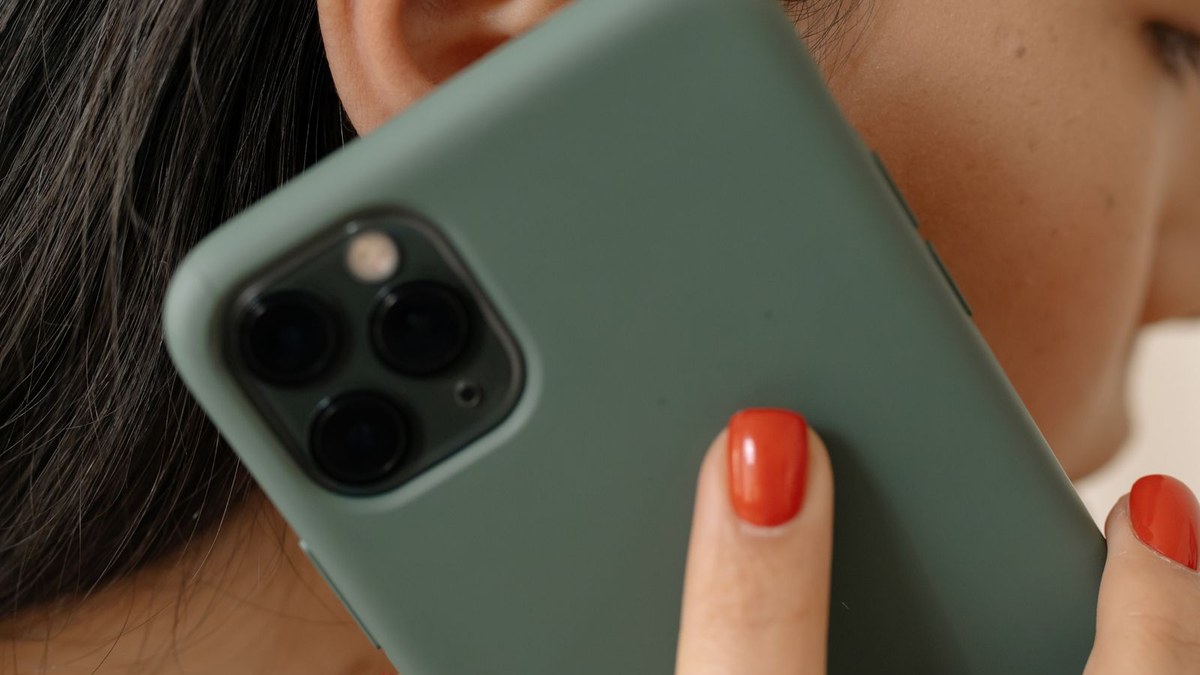
You pick up a call and the other person sounds like they are talking through a pillow. Music and YouTube sound perfectly clear, speakerphone works fine, but regular calls come through dull and muddy. It is one of the most common phone complaints, and it is also one of the easiest to fix yourself. Muffled calls almost always trace back to a blocked earpiece, a buried setting, or a network quirk, and none of those need a repair shop visit.
In this guide you will learn how to pin down which side of the call the muffle is on, then walk through nine fixes for iPhone and Android, plus what to avoid so a simple cleaning job does not become a real hardware problem.
Read More: Can’t Hear Your Caller? 8 Fixes That Bring Sound Back
First, Figure Out Which Side the Muffle Is On
Ask the caller one question: “Do I sound muffled to you?” If yes, the problem is your sending side: your microphone or mic settings. If you sound fine to them but they sound muffled to you, the problem is your receiving side: your earpiece, volume, or audio routing. That one question splits every fix below into two clear paths, and most guides never ask it.
Then switch to speakerphone mid-call. If voices sound clear through the loudspeaker, the issue is isolated to the earpiece. If speakerphone sounds muffled too, suspect network or software. Finally, call a second person: if only one caller sounds muffled, the problem is their end.
1. Clean the Earpiece Mesh
If the muffle is on your receiving side, start here. Your earpiece sits pressed against your cheek on every call, so it collects skin oil, makeup, sunscreen, and pocket lint. Over months that grime compacts into a film across the tiny mesh openings, and even a light layer makes voices sound distant and flat.
Use a dry, soft-bristled toothbrush that has never been used. Hold the phone with the earpiece facing down and brush gently in one direction so debris falls out. For the oily film a brush cannot lift, press masking tape or poster putty gently against the mesh and peel it away. Repeat with a fresh section until the tape comes away clean.
Never poke the mesh with a pin or paperclip, use rubbing alcohol, or blow into the grille with your mouth. The membrane is paper-thin and one poke destroys it permanently, and liquid or breath moisture causes corrosion.
2. Check Your Case and Screen Protector
Take the phone out of its case and look at the top edge. Cheap or poorly fitted cases sometimes have a thick bezel that overlaps the earpiece slit just enough to dampen sound. Make a test call with the case off to compare.
Screen protectors are the sneakier culprit. Some ship with a layer users forget to peel off, or the protector is cut off-center so its edge covers part of the earpiece slit. Run your fingernail along the top edge. If you feel a ridge over the slit, re-seat the protector or replace it with one cut for your exact model.
3. If They Hear You Muffled: Clean the Microphone Holes
When callers say you sound distant or underwater but you hear them fine, the problem is your microphone. Pocket lint packs into the bottom mic holes easily, and a small plug makes your voice sound like it is coming from another room.
Shine a flashlight at the holes next to the charging port and sweep any gray lint loose with the same dry toothbrush, gently. Then open your voice recorder, record ten seconds of speech, and play it back. If your voice sounds clear, the mic is fixed.
4. Watch Out for Flip and Wallet Cases
If you use a folio case with a lid that folds over the phone, that lid can cover the small noise-cancellation mic between the flash and the rear camera. When the lid covers it, the phone mistakes your voice for background noise and filters it out, so callers hear you faint and muffled.
Remove the case completely and make a call. If your voice suddenly sounds normal, the case was the cause. If you love the wallet style, pick a folio with a properly cut camera opening or fold the lid all the way back during calls.
5. Check Your Mic Mode and Noise Settings
On iPhone, start a call, open Control Center, and tap Mic Mode. You will see Standard, Voice Isolation, and Wide Spectrum. Voice Isolation cuts background noise, but in a quiet room it can over-process your voice and make it sound thin. Switch to Standard and ask the caller if you sound better.
Also toggle Phone Noise Cancellation off for one test call under Settings, Accessibility, Audio/Visual, to see if that feature is mangling your audio. On Samsung, check the Phone app settings for noise reduction options and turn off any third-party “call clarity” or equalizer apps.
Simple idea: make your test call to a friend and ask them to describe exactly what your voice sounds like. Too quiet, too bassy, and choppy each point to a different fix, and their description is free diagnostic data.
6. Rule Out a Stuck Bluetooth Connection
Your phone may be sending call audio somewhere you do not expect. If your earbuds are in their case in another room or your car stereo is still paired from the drive home, your phone may route the call there instead of to the earpiece. You hear a faint, hollow voice because it is leaking from the wrong device.
Turn Bluetooth off completely and make a test call. If the muffle vanishes, you found it. For a lasting fix, unpair devices you no longer use and turn off auto-connect for car systems. If you do use earbuds for calls, charge both buds fully, since a low battery on one side is a well-known cause of one-sided muffling.
7. Turn Up In-Call Volume and Check Audio Routing
Call volume is separate from media volume. During an active call, press the volume-up button and check the on-screen indicator. Make sure it says “Call” or shows a phone icon. If you adjust volume while not in a call, you are changing the wrong slider.
On iPhone, check Settings, then Accessibility, then Touch, then Call Audio Routing, and set it to Automatic so calls are not forced to a headset or speaker. On Android, check your Phone app settings for a call-audio section and confirm nothing is forcing calls to an external device.
8. Test Your Network and Call Settings
When the muffle sounds choppy or robotic rather than consistently dull, the network is the prime suspect. Retest from a spot with full signal bars. If the audio clears up, the signal was the issue.
Two settings make a real difference. Turn on Wi-Fi Calling if your carrier supports it, since calls over solid home Wi-Fi often sound clearer than calls over weak cellular signal. Also make sure VoLTE or HD Voice is enabled. HD Voice uses a wider audio codec that captures more of the natural tone of speech. For more on keeping calls stable, see Stop Dropped Calls on Your Phone: 9 Fixes.
9. Restart, Update, and Test With a Second Caller
A full restart clears temporary audio-routing glitches that survive a screen lock. Then check for a pending OS update, since manufacturers patch audio bugs between versions.
Also consider third-party apps. Call recorders, voice changers, and some VPN apps hook into call audio and can degrade it. If you installed anything like that recently, update or uninstall it and test again. If the muffle persists on every call after all nine fixes, the earpiece or mic driver itself may be damaged, and that is a hardware repair.
What a repair costs in the US if nothing helps:
- Professional earpiece or mic cleaning: $0 to $30, often free as a diagnostic
- Earpiece speaker replacement: $50 to $100 at a third-party shop
- Microphone or charging-port flex cable replacement: $60 to $120
- Apple out-of-warranty earpiece repair: $199 to $329 depending on the iPhone model
- AppleCare+ service fee for audio-component damage: $129
- Samsung and carrier insurance deductibles: typically $99 to $249 per claim
Before paying anything, check your manufacturer warranty or carrier insurance, since audio failures inside the warranty period are usually covered free.
Conclusion
Muffled call audio feels like a hardware failure, but it is almost always something simpler. Run the two-side test first, clean the earpiece or mic depending on which direction the muffle goes, and check your case, Bluetooth, and mic settings before you assume anything is broken. In most cases one of these nine fixes clears it up in under ten minutes.
If the muffle persists on every call after all of that, let a technician look at it. Tell them which side the muffle is on. You have already done the diagnosis they would charge you for.

1 Comment
Pingback: Screen Goes Black During Calls? 9 Fixes That Wake It