

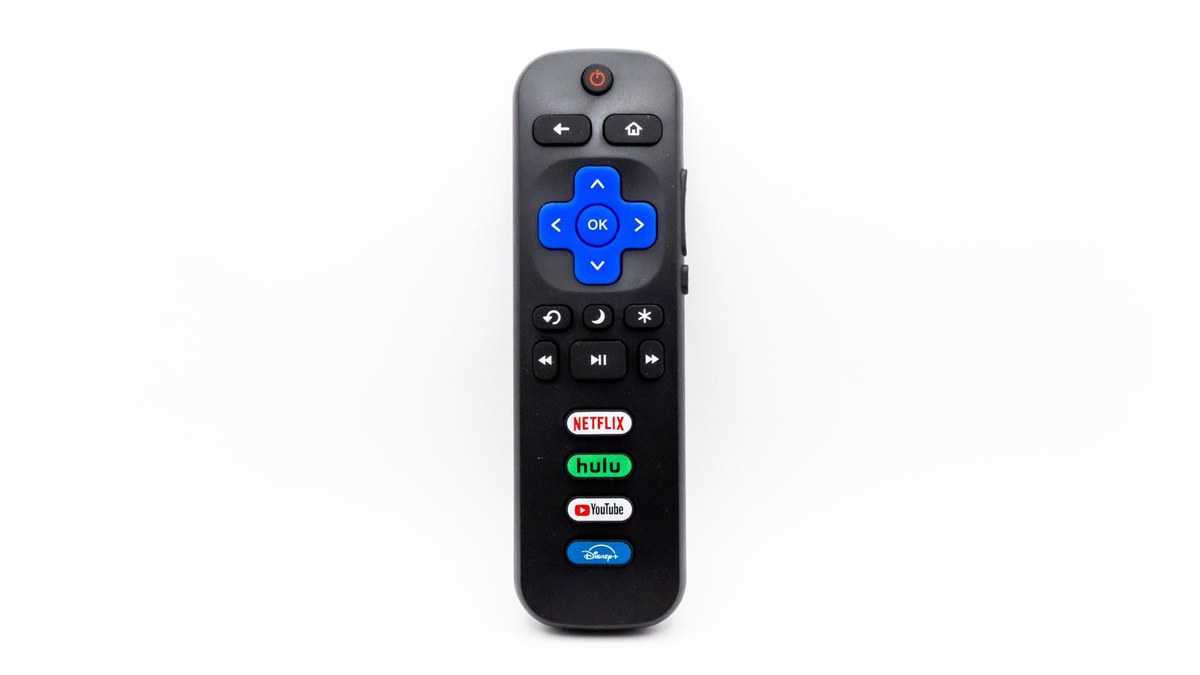
Why is my Roku remote not working right when you finally sit down to watch something? It worked last night, and now nothing happens, or only some buttons answer. Before you order a replacement, work through the nine fixes below in order. Most dead Roku remotes come back in under five minutes, and the cause is usually batteries, a lost pairing, or interference you can clear for free. This guide walks you through the exact order to try them, so you fix the remote instead of guessing.
Start with the 60-second diagnosis so you skip straight to the fix that matches your symptom.
Read More: Smart TV Not Connecting to WiFi? 9 Fixes That Work
Read Your Remote First: The 60-Second Diagnosis
Press any button and watch the small status light on the remote. No light at all usually means dead batteries or a dead remote. A light that flashes when you press a button means the remote has power but is not talking to your Roku, which points to pairing or interference.
Next, test which buttons work. If Home works but power and volume do nothing, your remote is paired fine and the problem is TV control, not the Roku link. That is fix 8. If no button works, start at fix 1.
Open the free Roku mobile app on your phone and try its built-in remote. If the app controls your Roku, the Roku is fine and the physical remote is the culprit.
1. Put In Fresh Batteries
Weak batteries cause more Roku remote trouble than anything else.
Check the battery size first. Most Roku remotes take two AA batteries, while some smaller models take two AAA batteries. Match the plus and minus marks exactly, and use a fresh pair from a new pack rather than batteries pulled from another remote.
If you own a Voice Remote Pro, there are no batteries to swap. Plug it into a USB-C charger and leave it for at least 30 minutes before you test it.
Simple idea: keep one spare pair of AA batteries in the drawer next to the couch. A dead remote at the start of movie night should cost you thirty seconds, not a trip to the store.
2. Clean Corroded Contacts and Free a Stuck Button
If fresh batteries change nothing, open the battery compartment and look closely at the metal contacts.
Dip a cotton swab in white vinegar or lemon juice and rub the crusty contacts gently until the metal looks clean again. Wipe them dry, let the compartment air out, then fit fresh batteries.
While the cover is off, press every button and feel for one that stays down or feels mushy. A stuck button drains the batteries fast and can block every other button. Press it firmly a few times, work it side to side, and check that it clicks back up.
3. Give a Simple Remote a Clear Line of Sight
First, work out which remote you own. If it has a microphone button, it is a voice remote and it talks to your Roku over a wireless link, so line of sight does not matter. If it has no microphone button, it is a simple remote and it uses infrared, which needs a clear path to the Roku.
Infrared cannot pass through a soundbar, a stack of books, a cabinet door, or a decoration sitting in front of the Roku.
4. Fix HDMI Interference on a Streaming Stick
Roku streaming sticks plug straight into the TV, which puts the stick right against the HDMI port. Roku itself confirms that interference from nearby HDMI cables can disrupt the voice remote on these models.
Test it in one minute. Unplug every HDMI cable from the TV except the one your Roku uses, then try the remote. The lasting fix is to move the stick away from the TV with an HDMI extender cable, or plug it into a different HDMI port.
Roku has offered Streaming Stick owners a free HDMI extender through a request form at my.roku.com/hdmi.
5. Drain the Remote and Reset It
A remote can freeze just like a phone, and a full power drain clears it. Take the batteries out, then press and hold any button for about 30 seconds. This drains the leftover charge inside the remote. Put the batteries back in the right way round and test the remote.
On a rechargeable Voice Remote Pro, hold the pairing button for about 20 seconds instead, until the status light flashes slowly, stops, then flashes quickly. If your rechargeable remote has no pairing button, hold the Home and Back buttons together for about 20 seconds.
6. Re-Pair the Remote the Right Way
Re-pairing is the fix, but the order matters. Unplug the power cable from your Roku player or Roku TV, take the batteries out of the remote, wait about five seconds, then plug the power back in. When the Roku Home screen appears, put the batteries back in the remote.
Now press and hold the pairing button for about five seconds, or until the status light starts to flash. If your remote has no pairing button, hold the Home and Back buttons together for five seconds.
If the light flashes but pairing never finishes, put the Roku into pairing mode first. Use the Roku mobile app as a remote, go to Settings, then Remotes and devices, then Set up a new device, then Remote. Then hold the remote’s pairing button again.
7. Fix the Wi-Fi Side of a Voice Remote
A voice remote does not need the internet to work, but it does need your home Wi-Fi network to be healthy, because it talks to the Roku over your local network.
Voice remotes use the 2.4 GHz band, which is also where microwaves, baby monitors, Bluetooth speakers, and your neighbors’ routers all pile in. Log in to your router and try a less crowded 2.4 GHz channel, such as 1, 6, or 11. If your router merges the 2.4 GHz and 5 GHz bands under one name, turn off band steering or split the bands.
Also check that your phone and your Roku sit on the same network when you use the mobile app as a remote. A phone on a guest network or a VPN cannot see the Roku at all, which makes the app look broken when the network is the real problem.
8. When Only Power and Volume Are Dead
Navigation works but power and volume do nothing is a very specific symptom, and it means the Roku link is fine.
First, turn on CEC in your TV’s own settings menu. Every brand names it differently, so look for Anynet+ on Samsung, Simplink on LG, Bravia Sync on Sony, or just HDMI-CEC on other brands. Then set up TV control again on the Roku: go to Settings, then Remotes and devices, then Remote, then Set up remote for TV control, and follow the on-screen test.
If setup fails, check that nothing blocks the infrared window on a simple remote, and try the setup with the remote pointed straight at the TV.
9. Use the Roku App, Then Decide on a Replacement
While you troubleshoot, the free Roku mobile app for iPhone and Android works as a full remote. It only needs your phone and your Roku to share the same Wi-Fi network.
Before you buy a replacement, update the Roku software with the app: go to Settings, then System, then System update, then Check now. Install anything it finds, then try the remote once more. If the remote still fails, a factory reset of the Roku is the last software step. Find it under Settings, then System, then Advanced system settings, then Factory reset.
Roku remotes carry a one-year limited warranty, so a remote that died in its first year may be replaced free through Roku support.
Here is what a replacement costs in the US if the remote is truly dead:
- Fresh AA or AAA batteries, pack of 4: $4 to $7
- USB-C cable for a Voice Remote Pro recharge: $5 to $10
- HDMI extender cable for a Streaming Stick: $6 to $10 (free from Roku on request)
- Official Roku simple remote: $15 to $20
- Official Roku Voice Remote: $20 to $30
- Official Roku Voice Remote Pro (2nd edition): $30
- Universal streaming remote: $15 to $40
Roku lists compatibility on its accessories page, so check your model number under Settings, then System, then About before you order.
Conclusion
Most Roku remotes that stop working come back with fresh batteries, a reset, or a careful re-pair. The 60-second diagnosis at the top of this guide tells you which of those three to try first, so you spend minutes on the fix instead of an evening on guesswork.
If your remote still will not respond after all nine fixes, the Roku app keeps you watching tonight.

1 Comment
Pingback: Fire Stick Not Working? 9 Fixes That Get It Back