

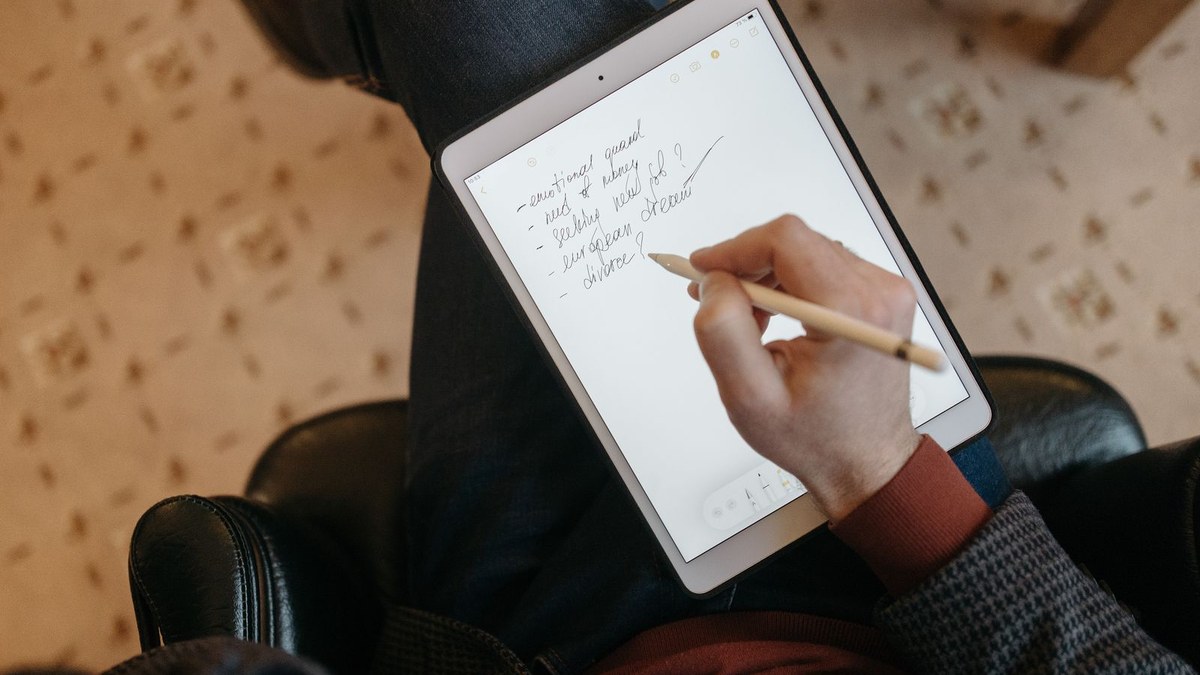
Your Apple Pencil stopped working at the worst possible moment, and the Pencil itself gives you nothing to work with. No light, no sound, no error message. It just sits there while your iPad acts like nothing is wrong. Most dead Pencils are flat, unpaired, or paired to the wrong iPad. You will find the exact charging path for your model, a 60-second test that names the fault, and the settings that quietly block drawing. Work through the fixes in order and you will know within ten minutes whether it needs a new tip, a fresh pairing, or a trip to Apple.
Read More: iPad Not Charging? 9 Fixes That Get It Going
First, Work Out Which Kind of Dead It Is
First, charge the Pencil for one minute, then check the Batteries widget for a percentage. Second, open Apple Notes, tap Markup, and try to draw a line. Third, open Settings, then Bluetooth, and look for your Pencil under My Devices. No battery percentage and no Bluetooth entry means a charging or battery problem. It shows in Bluetooth but will not draw, so the tip or a setting is the cause. It draws in Notes but not in your drawing app, so the app is the problem. It works after a restart, so a software glitch was holding it back.
1. Charge It the Right Way for Your Model
The first-generation Pencil plugs into your iPad with its Lightning connector, or into a cable with the small adapter from the box. The second-generation Pencil and the Pro snap onto the flat magnetic edge, and a charge popup should appear. The USB-C Pencil charges through a cable plugged into the port under its sliding cap. Give a flat Pencil at least ten minutes before you judge it. If no percentage appears after ten minutes, move on, but leave the Pencil charging.
2. Make Sure the Pencil Matches Your iPad
Apple has shipped four Pencils, each with a strict list of iPads, and a mismatch simply will not connect. The first-generation Pencil fits Lightning iPads, the second-generation fits the 2018 to 2022 Pro models and the 4th and 5th generation Air and 6th generation mini, the USB-C Pencil fits any iPad with a USB-C port, and the Pro fits only the M4 iPad Pro and the M2 and M3 iPad Air. Check your model under Settings, then General, then About. A Pencil pairs with one iPad at a time, so if someone in your house snapped it onto theirs, it will not work on yours until you pair it again. Note that the USB-C Pencil has no pressure sensitivity, double-tap, or hover, so missing pressure response on that model is normal.
3. Toggle Bluetooth and Re-Pair the Pencil
A stale pairing can leave your Pencil connected on paper and dead in practice. In Settings, then Bluetooth, switch Bluetooth off for ten seconds, then switch it back on. If it appears under My Devices, tap the small i, choose Forget This Device, then pair it fresh. Re-pair by plugging in the first-generation Pencil, snapping the second-generation or Pro onto the edge, or plugging a cable into the USB-C model, then tap Pair. If the Pencil does not appear in the Bluetooth list at all, charge it for ten more minutes and try again.
4. Tighten or Replace the Tip
The tip is the part everyone forgets, and the cheapest fix on this list. The tip screws on and can work itself loose. Twist it clockwise until it is snug. A loose or worn tip causes skipping, dead spots, and broken lines. If the tip feels rough or flat, or you can see exposed metal, it is done. Swap in a spare if you have one. Apple sells four tips for $19. Draw slow diagonal lines after the swap. Clean lines mean you found the problem.
Simple idea: twist the tip until it is snug, then snap the Pencil onto your iPad and leave it charging for ten minutes. A loose tip plus a flat battery causes most “dead Pencil” reports, and this check costs you nothing.
5. Restart Your iPad With the Pencil Attached
A restart clears glitches that stop a Pencil from working even when the battery and pairing look fine. Keep the Pencil attached while you restart, so the iPad can re-pair with it as it boots. On a Face ID iPad, press volume up, then volume down, then hold the top button until the Apple logo appears. On a Home button iPad, hold the Home and top buttons together until the logo appears. Once it is back on, open Notes and try to draw. If the Pencil works now, a stuck Bluetooth process was the cause, and you are done. If it still does not work, the fault sits in settings, the app, or the hardware.
6. Check the Settings That Silently Block Drawing
Your iPad has settings that can make a healthy Pencil look dead. Open Settings, then Apple Pencil, and work through the list. First, look at “Only Draw with Apple Pencil”. When this is on, your finger cannot draw in supported apps, which is fine until the Pencil connection drops. Second, check the double-tap setting on the second-generation Pencil, or the squeeze setting on the Pro. If either is set to Off, the gesture stops working and the Pencil feels broken. Third, check Scribble. If it is off, handwriting in text fields will not convert, which reads like a dead Pencil. Fourth, check your iPadOS version. The Pencil Pro needs iPadOS 17.5 or later, and the USB-C Pencil needs iPadOS 17.1.1 or later. Update under Settings, then General, then Software Update.
7. Test in Notes and Rule Out the App
If your Pencil draws in Apple Notes but not in your drawing app, the Pencil is fine and the app is the problem. Open Notes, tap Markup, and draw a few lines. If the lines appear, check three things in the app that was giving you trouble. First, confirm the app supports the Apple Pencil. Second, update the app, since a Pencil bug in an old version is a common cause. Third, look inside the app for its own stylus settings. Procreate, GoodNotes, and Notability each have palm rejection and stylus-only modes, and a wrong toggle there blocks the Pencil.
8. Take Off the Case and Screen Protector
Cases and screen protectors cause more Pencil trouble than most people expect. On the second-generation Pencil and the Pro, a thick case can hold the Pencil just far enough from the magnetic edge that it charges slowly or not at all. Take the case off, snap the Pencil onto the bare edge, and watch for the popup. Thick tempered glass can dull the Pencil response, and a paper-like protector wears tips down faster. If the Pencil works on bare glass, the protector is the cause. One more point: a third-party replacement screen may not be calibrated for the Pencil, and no setting will fix that. If your touch screen has other odd behaviour too, our guide to fixing an unresponsive touch screen covers the same kind of screen tests.
9. Update iPadOS and Check for Damage
If nothing above has worked, check the software version and the Pencil itself. Install any pending update under Settings, then General, then Software Update. Next, inspect it closely. Look for a bent tip, a cracked body, or a loose connector. A Pencil dropped onto its tip can damage the internal sensor. Check your warranty under Settings, then General, then AppleCare and Warranty. The one-year warranty covers manufacturing faults, and AppleCare+ covers accidental damage for a $29 service fee. Apple does not repair Pencils. Out of warranty, a replacement costs $79 for the USB-C model, $99 for the first generation, and $129 for the second generation or the Pro. A Genius Bar visit is free and tells you in minutes whether the Pencil or the iPad is at fault.
Here is what each fix can cost you in the US:
- Fresh tips, pack of 4 from Apple: $19
- USB-C cable if yours is frayed: $19
- Apple Pencil (USB-C) replacement: $79
- Apple Pencil (1st generation) replacement: $99
- Apple Pencil (2nd generation) or Pencil Pro replacement: $129
- AppleCare+ accidental-damage service fee: $29
- Genius Bar diagnosis: free
Total: $0 to $29 if it is a setting, a tip, or a warranty fix, and up to $129 if the Pencil itself is dead.
Conclusion
Most Apple Pencils that stop working are not broken. They are flat, unpaired, or wearing a tired tip, and each takes minutes to sort. Work the list in order, charge first, pair second, and test in Notes before you spend a dollar.
If nothing here brings it back, let Apple look at it. A free Genius Bar visit tells you in minutes what is at fault, and a warranty check might make the replacement free. Do not keep buying tips and cables for a Pencil with a dead battery.
