

NotebookLM, now known as Gemini Notebook, can turn uploaded notes, PDFs, study material, and other sources into interactive flashcards. If you want to edit them outside the platform, keep a backup, or prepare them for another study app, exporting them as a CSV file is a simple option.
You do not need a Chrome extension, browser script, or third-party converter for this task. Google includes a built-in flashcard download option that saves a deck as a CSV file. After you download it, open it in spreadsheet software to review, organize, and further edit it.
Read More: Smart Technology Innovations Transforming Modern Living
What Does Exporting NotebookLM Flashcards to CSV Mean?
CSV stands for Comma-Separated Values. It is a lightweight file format that stores structured information in rows and columns. When you export NotebookLM flashcards to CSV, the deck becomes a separate file you can open outside NotebookLM.
This format is useful because common spreadsheet tools can work with CSV files. Instead of keeping every flashcard inside one notebook, you can save a local copy, make changes, add categories, or prepare the data for another application that accepts CSV imports.
How to Export NotebookLM Flashcards to CSV Without an Extension
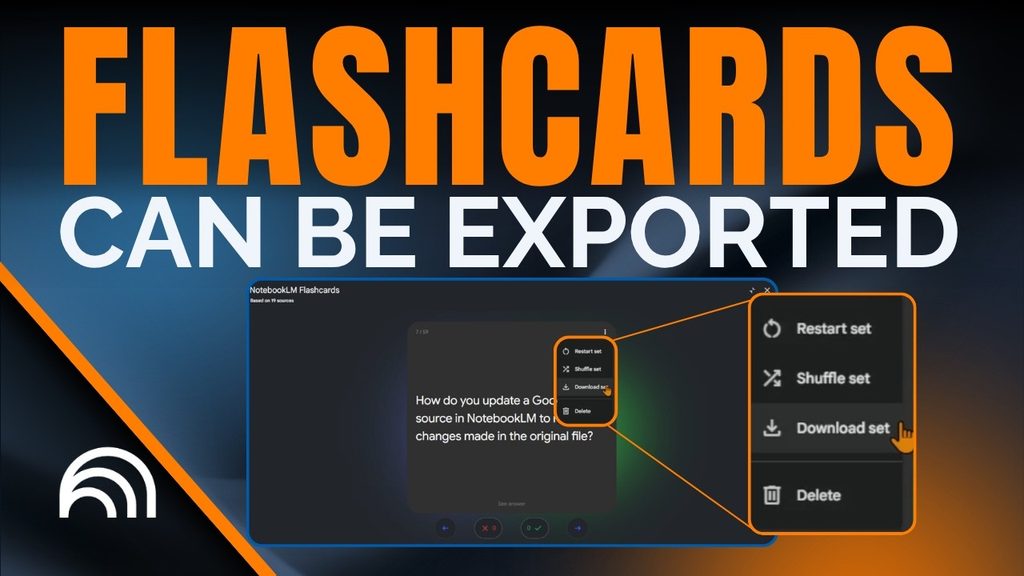
Open the notebook containing the material used to create the flashcards. Navigate to the deck and open it. Google’s current flashcard controls include navigation, shuffle, delete, restart, and a Download option for saving the cards as CSV.
The basic process is to open your NotebookLM or Gemini Notebook project, open the required flashcard deck, locate the Download control, choose the CSV download option, and save the file to your computer.
- Open the required flashcard deck.
- Locate the Download control.
- Choose the CSV download option.
- Save the file to your computer.
The browser will usually place the CSV in your normal Downloads folder unless you have changed your download settings.
Why Use the Built-In CSV Export?
The native export option keeps the process simple. There is no need to install an extension that reads page content or asks for additional browser permissions. You are using a feature built into the flashcard interface.
A direct CSV export also gives you cleaner data than copying each question and answer manually. That matters when a deck contains dozens of cards. Instead of rebuilding the set entry by entry, you can download it and edit it right away.
How to Open and Edit the Downloaded CSV
After the download finishes, open the CSV using Google Sheets, Microsoft Excel, LibreOffice Calc, or another compatible spreadsheet editor. The flashcard information should appear in an organized table, making it easier to scan the deck at once.
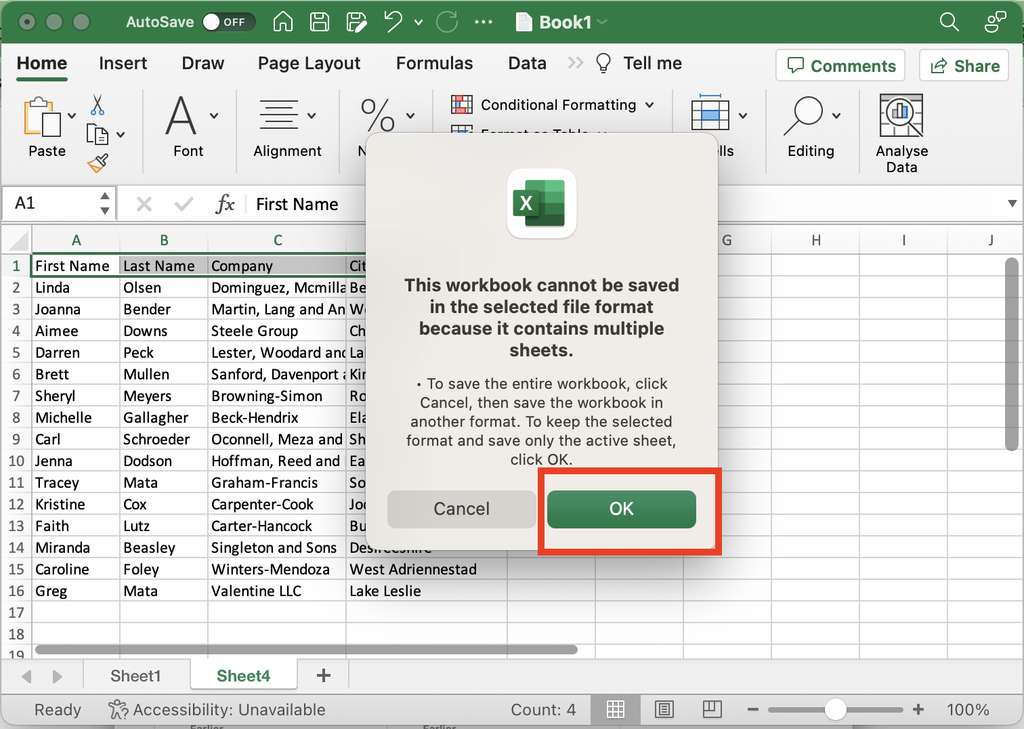
You can correct wording, remove unwanted cards, shorten answers, or add your own columns for topics and revision notes. If you plan to import the file elsewhere, keep the structure simple and avoid spreadsheet features that CSV does not preserve, such as complex formatting or multiple sheets.
Using NotebookLM Flashcards in Another Study App
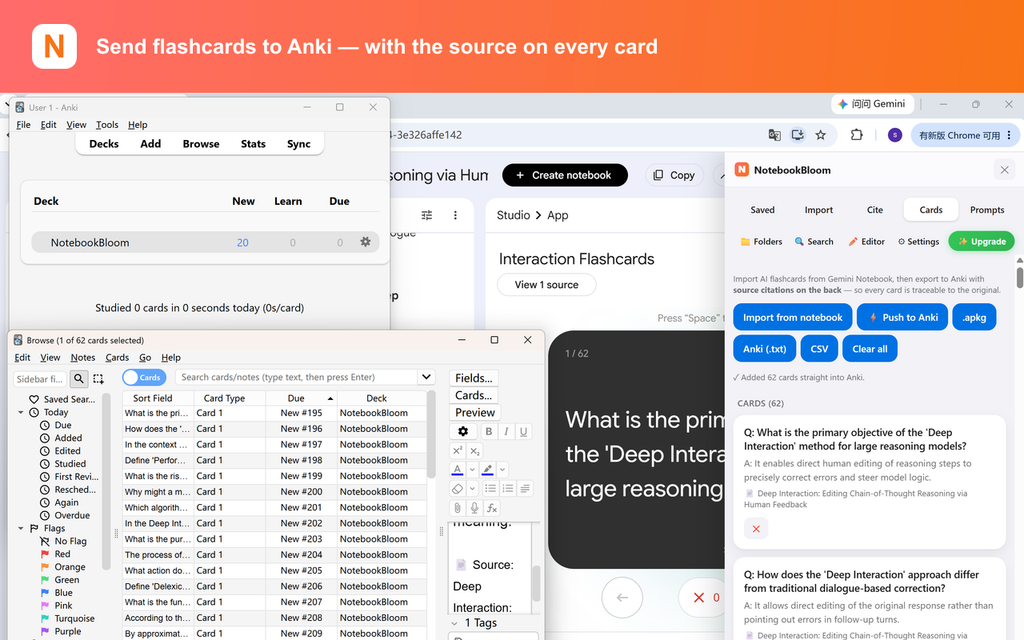
Many study and flashcard platforms support CSV imports, but their required layouts are not always identical. One service may treat the first column as the front of the card and the second as the back, while another may require different column headings.
Before importing your NotebookLM CSV, check the target application’s import instructions. If its required structure differs, rearrange or rename the columns in your spreadsheet first. Save the edited version as CSV again before importing it.
What If the Download Option Does Not Appear?
First, confirm that you are viewing a flashcard deck rather than another NotebookLM output. Different Studio outputs have different controls, so a button available for flashcards may not appear in a quiz or another generated artifact.
Source restrictions can also affect downloading. Google states that publisher content restrictions may prevent artifacts from being downloaded when a notebook uses a Google Play Books ebook as a source. In that case, the missing option may be connected to the source restriction rather than a browser problem, so check the notebook’s source restrictions first.
How to Organize Exported Flashcards
Give each downloaded file a meaningful name. A filename such as Biology-Cell-Division-Flashcards.csv will be easier to identify later than a generic download name. Separate folders can also help if you are creating decks for several courses or projects.
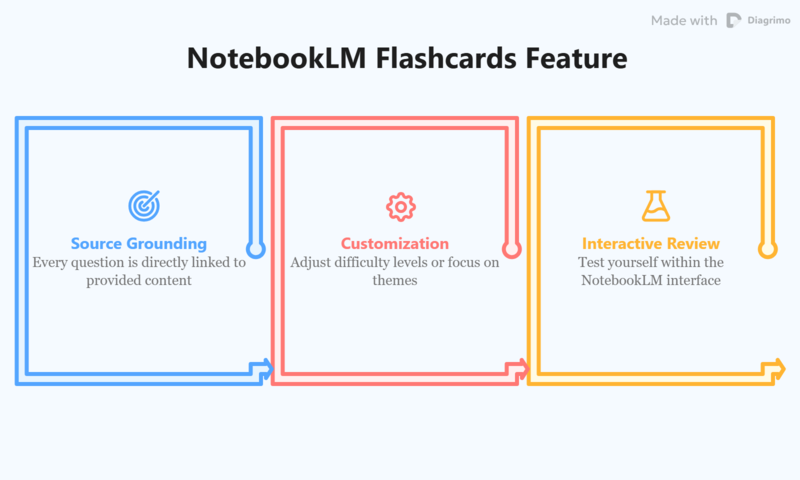
Review the content before using it for serious exam preparation or professional training. NotebookLM creates flashcards from the sources you provide and allows users to customize topic, difficulty, and the number of cards. A quick manual check can still help you catch unclear wording or cards that need more context.
Frequently Asked Questions
Can NotebookLM export flashcards directly to CSV?
Yes. Google documents a built-in Download control for flashcards that saves the deck as a CSV file. You do not need a separate browser extension to access this export function.
Do I need a Chrome extension to export NotebookLM flashcards?
No. The CSV download feature is available directly within the flashcard controls. Using the built-in option also avoids depending on an unofficial extension for a task NotebookLM already supports.
Can I open the exported CSV in Google Sheets?
Yes. CSV files can be opened or imported into Google Sheets. Once opened, you can edit the questions, answers, headings, and any additional columns you add.
Can I edit NotebookLM flashcards after exporting them?
Yes. The downloaded CSV can be edited using spreadsheet software. Changes made to the CSV will not automatically change the original flashcard deck inside NotebookLM.
Can I import the CSV into another flashcard app?
Possibly. It depends on whether the target app supports CSV imports and what column structure it requires. Check its import documentation first, then rearrange the NotebookLM data if necessary.
Why is the NotebookLM Download button missing?
Make sure you opened an actual flashcard deck and are viewing its controls. Publisher restrictions can also block downloads for some notebooks using Play Books ebook sources.
Does exporting delete the original flashcards?
No. Downloading creates a separate CSV copy of the flashcard information. The original deck remains available in your notebook unless you manually delete it.
Can NotebookLM create flashcards from my own sources?
Yes. NotebookLM can generate flashcards from source materials such as notes and documents and lets you customize the set. That makes CSV export useful when you want to continue working with those generated cards outside the platform.
Conclusion
Exporting NotebookLM flashcards to CSV without an extension only requires the built-in Download control. Open the deck, choose Download, and save the CSV file to your device. The process avoids extra browser tools and gives you an editable copy of the deck.
After downloading, open the file in a spreadsheet, review the card content, and adjust the structure if you plan to use it elsewhere. If the download option is unavailable, check the output type you opened and whether the notebook contains source material with publisher restrictions that may block downloading.

1 Comment
Pingback: Best PC Games Gamers Should Try in 2026