

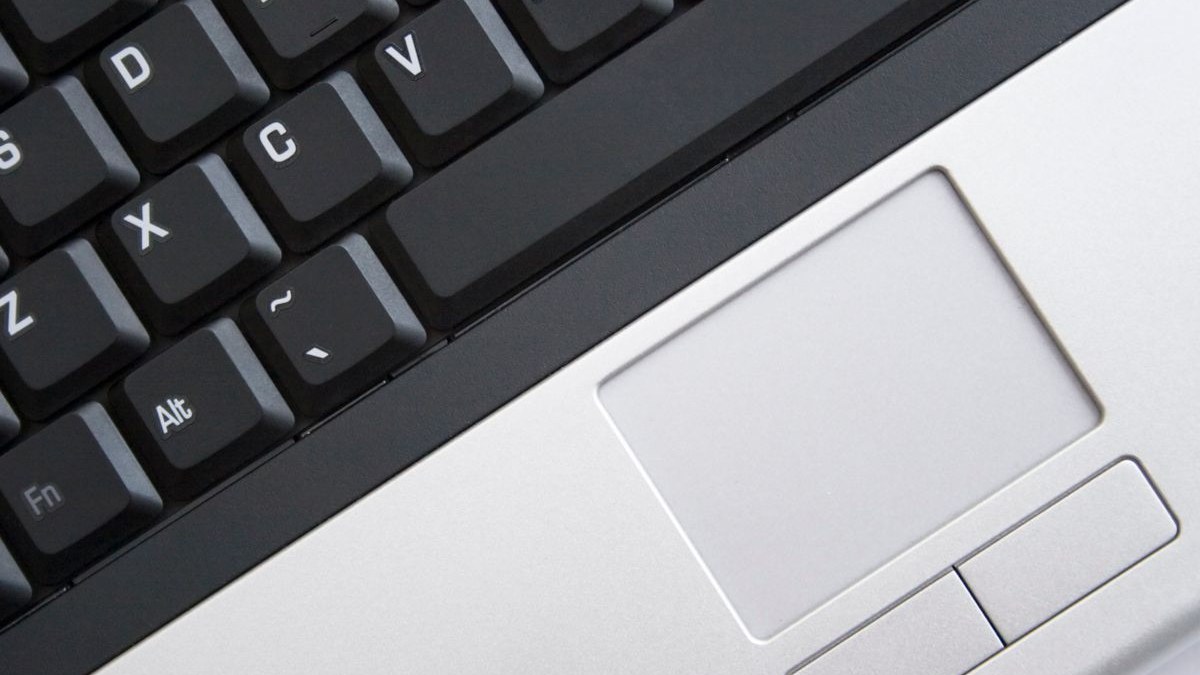
When your laptop touchpad is not working, the whole machine feels broken. You can see everything on screen, but you cannot click a thing. The good news is that most dead touchpads are not hardware failure at all. A hidden keyboard shortcut, a setting flipped by an update, or a tired driver sits behind most cases, and each one takes minutes to fix. This guide walks you through nine fixes in the order that solves the problem fastest, for Windows 11, Windows 10, and MacBook trackpads.
Read More: Laptop Running Slow? 9 Fixes That Speed It Up
First, Read What Your Touchpad Is Telling You
Before you change a single setting, spend 60 seconds watching how the touchpad fails. Does the cursor move at all? Plug in a USB mouse. If the mouse works fine, the fault is limited to the touchpad. Try two-finger scrolling. If the cursor moves but gestures are dead, your driver or gesture settings are the problem. A cursor that jumps, drifts, or clicks on its own usually means dirt, moisture, or a swollen battery under the pad. Finally, restart and press the key that opens your BIOS setup screen, usually F2, Delete, or F10. If the touchpad moves the cursor there, the hardware is fine and Windows or macOS is the problem. If it is dead there too, it is a hardware fault.
Press the Hidden Touchpad Toggle Key
Most Windows laptops hide a touchpad on-off switch on the keyboard, and it is the number one cause of a touchpad that dies out of nowhere. Look at your function keys for a small touchpad icon, a rectangle with a finger or a line through it. On many HP, Lenovo, Dell, and ASUS models it sits on F5, F6, F7, or F9. Press Fn plus that key once, then test the pad. Some laptops use the key alone, without Fn, so try both. If the pad springs back to life, you are done in ten seconds.
Turn the Touchpad Back On in Settings
Windows updates and driver reinstalls can silently flip the touchpad setting off, so check it even if you never touched it. On Windows 11, open Settings, go to Bluetooth and devices, then Touchpad, and make sure the toggle at the top is on. On Windows 10 the path is Settings, Devices, Touchpad. On a MacBook, open System Settings, click Trackpad, and confirm that Tap to click and tracking speed are set the way you like them.
Simple idea: before you dig into drivers, plug in a cheap USB mouse and keep it nearby for the rest of this guide. Every fix below is easier with a working pointer, and a $10 mouse turns a frustrating repair into a calm one.
Clean the Pad and Check Your Hands
Touchpads read the tiny electrical charge in your fingertips, so anything between your skin and the surface can confuse them. Wipe the pad with a dry microfiber cloth in straight lines. For stuck grime, use a slightly damp cloth, then dry it right away. Warm your hands for a minute and try again with a bare fingertip. Peel off any skin or screen protector stuck over the trackpad.
Unplug the Mouse That Is Stealing Control
Many laptops disable the touchpad automatically the moment an external mouse is connected. A Bluetooth mouse can stay paired in your bag, or a USB receiver can stay plugged into a hub. Unplug every mouse and receiver, turn off any Bluetooth mouse, and test the pad again. Then check the setting. In Windows 11, go to Settings, Bluetooth and devices, Touchpad, and look for the option that leaves the touchpad on when a mouse is connected.
Restart, Then Fix the Driver
A full restart clears the driver glitches that pile up after days of sleep and wake cycles. Shut the laptop down completely, wait 30 seconds, and power it back on. A real restart reloads the touchpad driver from scratch. If that does not help, open Device Manager. Expand Mice and other pointing devices, right-click your touchpad entry, and choose Update driver, then Search automatically for drivers. If Windows finds nothing, right-click the entry, choose Uninstall device, and restart. If it died right after a Windows update, use Roll Back Driver on the Driver tab.
One brand trap catches a lot of people. On many ASUS laptops, the touchpad needs two drivers working together: the Intel I2C chipset driver and the ASUS Precision Touchpad driver. Updating only one leaves the pad dead, so install both from your laptop maker support site, starting with the chipset driver. Get drivers from the maker site first.
Test the Touchpad in BIOS to Split Hardware From Software
Your BIOS or UEFI screen runs before Windows or macOS loads, so no driver, update, or setting inside your operating system can affect it. That makes it the cleanest hardware test you have. Restart, enter setup with F2, Delete, or F10, and try to move the cursor with the touchpad. If it moves there, your hardware is healthy and the problem is software. If it is dead in BIOS too, no driver reinstall will save it.
Fix a MacBook Trackpad the Mac Way
MacBook trackpads rarely fail the way Windows touchpads do, because macOS handles the driver itself, but they have their own traps. First, install any pending macOS update. Then open System Settings, Trackpad, and check the Point and Click tab. Make sure Force Click and haptic feedback are on. If the trackpad still misbehaves, reset the system controllers. On Intel MacBooks, shut down, then hold Control, Option, and Shift on the left side plus the power button for ten seconds. On Apple silicon, just shut down, wait 30 seconds, and power on. Finally, run Apple Diagnostics by holding Command plus D at startup. A code like NDR001 or NDR004 points at a trackpad fault.
Check for a Swollen Battery Before You Keep Clicking
This is the one fix you should never skip, because it is a safety issue, not a settings issue. Laptop batteries sit directly under the touchpad on most models. When a battery swells, it pushes up against the pad from below. Watch for these signs: the touchpad clicks feel stiff or mushy, the pad sits higher than the palm rest, the cursor jumps or clicks on its own, or the case has a visible bulge. If you notice any of these, stop using the laptop right away. Do not charge it, do not press hard on the pad, and do not try to puncture or squeeze the battery. A swollen lithium battery can catch fire. Take the laptop to an authorized repair shop or the maker service center.
Drive Your Laptop by Keyboard While You Fix It
Every fix in this guide is easier when you can move around without a working touchpad, so here is the keyboard survival kit. On Windows, press the Windows key to open Start, type the name of the app or setting you need, and press Enter. Use Tab and the arrow keys to move, and Enter or Space to select. Alt plus Tab switches between open windows, and Win plus X opens the quick menu that holds Device Manager and Settings. Our guide to 9 fixes when your laptop keyboard stops typing covers the keyboard side in detail.
What a Repair Costs in the US
Here is what a touchpad repair usually costs in the US, so you can decide whether to fix it or live with a mouse:
- USB mouse as a workaround: $10 to $25, and it works instantly
- Touchpad module replacement at an independent shop: $100 to $200 including labor
- Touchpad replacement at the maker service center: $150 to $300
- MacBook trackpad replacement at Apple: $129 to $199, or $29 with AppleCare Plus
- Swollen battery replacement: $80 to $200
Before you pay anything, check your warranty. Most laptops carry a one-year maker warranty, and many credit cards add an extra year of coverage. A touchpad that died on its own, with no spill or drop, is usually a warranty repair.
Conclusion
A laptop touchpad that is not working feels like a dead laptop, but it is usually one of the simple faults in this guide. Start with the 60-second test, press the hidden toggle key, check the setting, and fix the driver. The BIOS test tells you when to stop chasing software and start thinking about hardware.
Work through the fixes in order and note which step brings the cursor back. If none of them work and the pad is dead even in BIOS, it is a hardware fault, and the repair prices above tell you what to expect.
