

Laptop Bluetooth not working is one of those problems that feels personal. You open the lid, click the headphones you use every day, and nothing happens. Or the mouse you paired last week has vanished from the list.
Before you download a driver or buy anything, take sixty seconds to read the symptom. The fix for a missing Bluetooth switch is completely different from the fix for headphones that pair but stay silent, and the wrong fix wastes an evening. You only need to know which part is actually broken, the laptop, the accessory, or the connection between them.
Read More: Fix Bluetooth Not Connecting: 8 Pairing Fixes That Work
Read the Symptom First: Your 60-Second Diagnosis
Every Bluetooth failure on a laptop falls into one of four buckets. If the Bluetooth switch is missing from Settings or grayed out, Windows or macOS cannot see the adapter at all. If the switch is there but your device never appears in the list, the accessory is the problem in nine cases out of ten. It is not in pairing mode, it is still connected to your phone, or its battery is too low to broadcast.
If the device pairs but produces no sound, or the sound is thin and tinny, you have a profile problem, not a connection problem.
1. Turn Bluetooth Off and On, Then Restart the Right Way
Start with the toggle. On Windows, open Settings, then Bluetooth and devices, and switch Bluetooth off. Wait ten seconds, then switch it back on. On a Mac, click the Bluetooth icon in the menu bar and do the same.
If the toggle did nothing, do a real restart, not a lid close. On Windows 11, Fast Startup can keep a broken Bluetooth driver loaded across restarts. Hold Shift while you click Shut down, wait a full minute, then power on.
2. Check Airplane Mode and the Hidden Wireless Switch
Airplane mode kills Bluetooth along with Wi-Fi. On Windows, press Windows key plus A and check that Airplane mode is off.
Some Windows laptops also have a physical wireless switch on the side or a function key, usually F2 or F12, that toggles the radio. If your laptop has one, flip it and watch for the Bluetooth icon to return.
3. Put the Accessory in Pairing Mode, and Kick It Off Your Phone
Bluetooth accessories stop broadcasting once they connect to something, and most of them remember your phone first.
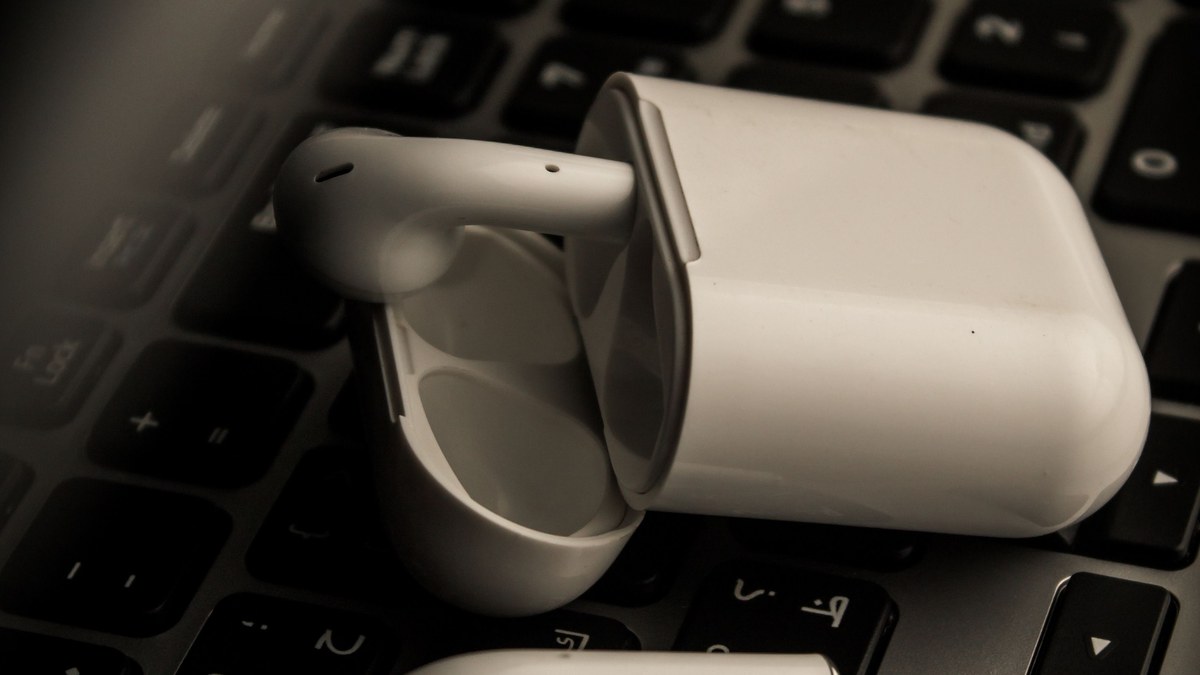
Turn Bluetooth off on your phone first, or at least disconnect the accessory from it. Then put the accessory into pairing mode. The exact move varies by brand, but the common patterns are: hold the power button for three to five seconds until the light blinks blue or white, hold the case button on AirPods until the light pulses white, or press and hold both earbuds for five seconds.
Simple idea: charge the accessory fully before you troubleshoot anything else. A low battery makes headphones drop in and out in ways that look exactly like a broken laptop, and a full charge costs you nothing.
4. Remove the Device and Pair It Fresh
A saved pairing can go stale. The fix is to delete the pairing on both sides and start over. On Windows, go to Settings, then Bluetooth and devices, then Devices, click the three dots next to the accessory, and choose Remove device. On a Mac, open System Settings, then Bluetooth, click the small info icon beside the device, and choose Forget This Device.
Then re-pair from scratch, and stay close. If the accessory still does not appear, change one Windows setting that hides half the devices on the market. Under Bluetooth and devices, then Devices, find Bluetooth devices discovery and switch it from Default to Advanced.
5. Run the Troubleshooter and Restart the Bluetooth Service
When the toggle is missing or grayed out, Windows has a built-in tool that is worth five minutes. Open Settings, then System, then Troubleshoot, then Other troubleshooters, and run the Bluetooth troubleshooter. Let it finish, follow what it suggests, then restart and check whether the switch came back.
If the troubleshooter finds nothing, restart the Bluetooth Support Service by hand. Press Windows key plus R, type services.msc, and press Enter. Scroll to Bluetooth Support Service, right-click it, and choose Restart. Then double-click it and set Startup type to Automatic, so it starts on its own every time you boot.
6. Fix the Driver: Update It, Roll It Back, or Reinstall It
Drivers are where most laptop Bluetooth problems actually live, and the right move depends on when the problem started. Open Device Manager by right-clicking Start, expand Bluetooth, and right-click your adapter, usually named Intel Wireless Bluetooth or Realtek Bluetooth.
If Bluetooth broke right after a Windows update, do not update the driver. Roll it back instead. In the adapter’s Properties, open the Driver tab and click Roll Back Driver if the button is available. If neither works, get the driver from your laptop maker’s official support site by searching your exact model number.
7. Clear the 2.4 GHz Traffic Jam
Bluetooth and most Wi-Fi both live on the 2.4 GHz band, and they fight for the same air. Move the laptop closer to the accessory, and move both away from the router.
Switch your laptop’s Wi-Fi to the 5 GHz band when you can. USB 3.0 ports can also interfere, so if your mouse drops out whenever a USB drive is plugged in, move the drive to a port on the other side of the laptop.
8. Reset Bluetooth on Your Mac the Right Way
Mac Bluetooth problems have their own playbook, and skipping it is why so many Mac owners end up reinstalling macOS for a ten-minute fix. Start by resetting the Bluetooth module (hold Option and Shift, click the menu bar icon, then choose Reset the Bluetooth module). If that does not work, delete the Bluetooth preference file. Open Finder, press Command, Shift, and G, type ~/Library/Preferences/, and delete com.apple.Bluetooth.plist. Restart the Mac and pair your devices again.
On Intel Macs, reset the SMC as well, since it manages the power to the Bluetooth radio. Shut down, then hold Shift, Control, and Option on the left side plus the power button for ten seconds, then release everything and start up. Apple silicon Macs do not have an SMC reset, so just shut down fully, wait thirty seconds, and start up again. If Bluetooth still misbehaves, boot into Safe Mode by holding Shift at startup.
9. Fix “Connected but No Sound” and the Dropout Problem
The most confusing Bluetooth symptom is the one where everything looks right. The headphones say Connected, the laptop says Connected, and yet no sound comes out. On Windows this is almost always a profile problem. Bluetooth headphones have two modes: Stereo for music, and Hands-Free for calls. Open Settings, then System, then Sound, and make sure the output is set to your headphones with Stereo in the name, not Hands-Free AG Audio.
On a Mac, open System Settings, then Sound, and confirm the output is your headphones and not the internal speakers. Also check the battery settings. On Windows, open Device Manager, find your Bluetooth adapter, open Properties, then Power Management, and untick “Allow the computer to turn off this device to save power.” Our guide to laptop WiFi problems covers the shared Wi-Fi side of the same hardware.
What it costs if the free fixes fail:
- USB Bluetooth adapter (a quick workaround for a dead built-in radio): $10 to $15
- Replacement internal Wi-Fi and Bluetooth card, if your laptop lets you swap it: $30 to $60 for the part
- Shop labor to replace the card or reseat the antenna cable: $49 to $99
- Full diagnosis and repair at a repair shop: $79 to $150
- New headphones or mouse, if the accessory itself turns out to be faulty: $25 to $249
Before you pay anyone, try the USB adapter test. Plug a cheap adapter in, disable the built-in Bluetooth, and pair your headphones to the adapter. If everything works, your built-in radio is the problem and a $12 adapter is a perfectly good permanent fix. For sound issues that survive the profile fix, our laptop sound troubleshooting guide walks through the deeper audio settings.
Conclusion
Most laptop Bluetooth problems are not hardware failures. They are a device still married to your phone, a driver that a recent update broke, a service that stopped running, or a radio fighting your Wi-Fi for the same air. Work through the fixes in order, and stop as soon as one of them works.
If you reach the end of this guide and nothing has worked, do the two tests that settle it. Pair a different accessory to the laptop, and pair your accessory to your phone. If nothing pairs to the laptop, the radio is the problem. If your accessory pairs to nothing at all, replace the accessory.
