

Your laptop feels hot enough to fry an egg, the fan sounds like a jet engine, and your apps crawl. So why is my laptop overheating, and is it actually dangerous? A warm laptop is normal when you push it hard. A laptop that burns your legs, slows to a crawl, or shuts itself off is not. Heat is the one problem that quietly shortens your laptop’s life, wearing down the battery, the storage drive, and the processor itself. The good news is that most overheating has a simple cause you can fix in minutes. This guide gives you a 60-second test to find your cause first, then nine fixes in the order that works, for Windows and Mac alike.
Read More: Laptop Fan So Loud? 9 Fixes That Quiet It Down
Read the Heat First: Your 60-Second Diagnosis
Do not start fixing until you know what kind of hot you have. Ask three quick questions. When does it get hot: at idle, under load, only while charging, or right after an update? Where is it hot: the palm rest points at the battery, the middle of the keyboard points at the processor, and the hinge area points at blocked vents. Then check the real number. On Windows, the free Core Temp or HWMonitor app shows your CPU temperature. On a Mac, open Terminal and run sudo powermetrics, or use iStat Menus. Idle at 40 to 55C and light work at 60 to 75C are normal. Gaming or editing at 85 to 95C is hot but expected. Idle above 65C, or anything over 100C, is a real problem.
1. Get It Off the Bed: Free the Vents
Most laptop vents sit on the bottom and the sides, and soft surfaces smother them. A bed, a pillow, a blanket, or your lap can block the intake in seconds, and the hot air then has nowhere to go. Move the laptop to a hard, flat surface like a desk or a table. Working from the couch? Put a large hardcover book or a lap desk under it. This costs nothing, takes ten seconds, and fixes more overheating laptops than any other step.
2. Blow Out the Dust, the Safe Way
Dust builds up inside every laptop, and a thin felt of it across the vents can raise temperatures by 10 degrees or more. Shut the laptop down and unplug it first. Take it outside, then blow short bursts of compressed air into the vents. Hold the fan still with a toothpick through the vent grill while you blow, because spinning it too fast can damage its bearings. Never use a household vacuum on the vents, since the plastic nozzle can build up static and zap the electronics.
Simple idea: hold the laptop up to a light and look through the vent slots before you clean. If you cannot see light through them, dust is your problem, and this one fix can drop your temperatures by 10 degrees or more.
3. Catch the App Cooking Your CPU
A single greedy app can cook a laptop while everything else looks fine. On Windows, press Ctrl, Shift, and Esc to open Task Manager, then click the CPU column to sort by usage. On a Mac, open Activity Monitor from Spotlight and sort the same way. Look for a browser eating 40 percent or more, a cloud drive doing its first big sync, or a process you do not recognize. Close what you do not need and watch the temperature fall. If your laptop is slow as well as hot, our guide to speeding up a slow laptop covers the same hunt in more detail.
4. Turn Down the Power: Cap Your Processor
Your processor does not need full speed for email and web browsing, and full speed is what makes the heat. On Windows, open Power Options, pick your plan, then go to Change plan settings, Change advanced power settings, and set Maximum processor state to 99 percent. That one percent kills turbo boost, and temperatures often drop 10 to 15 degrees with almost no speed loss you can feel. Switch the plan to Balanced or Power Saver for everyday work and save Performance for games and edits. On a Mac, turn on Low Power Mode under System Settings, then Battery.
5. Fix the Charging Heat Trap
Charging adds heat on top of everything else, so a laptop that only gets hot while plugged in has a charging problem, not a cooling problem. First, check the charger. A 45W charger on a laptop that needs 65W works flat out and runs hot, and cheap third-party chargers often do the same. Use the charger that came with the laptop, or a genuine one with the right wattage. Second, avoid gaming or editing video while fast charging. Third, cap the charge at 80 percent with your maker’s app, like Lenovo Vantage or MyAsus, or macOS Optimized Battery Charging.
6. Wait Out the Update and Sync Storm
Sometimes the heat has a deadline. After a Windows or macOS update, your laptop reindexes files, rebuilds thumbnails, and finishes background installs. If Task Manager or Activity Monitor shows Windows Update, Spotlight, mds, or your cloud drive at the top, just let it finish on a hard surface with the charger plugged in. If the heat lasts more than 48 hours after an update, move on to fix 8, because something is stuck.
7. Listen to the Fan and Check the Battery
A healthy fan hums. A dying one rattles, clicks, pulses, or never spins at all. Feel for moving air near the vent, then shine a flashlight through the grill to see if the blades turn. While you are there, check the battery. Check battery health with powercfg /batteryreport on Windows or System Information on a Mac. Under 80 percent capacity, or over 1,000 cycles on a Mac, means an aging battery that runs hotter. Stop using the laptop at once if the trackpad clicks oddly, the keyboard bulges, or the bottom panel no longer sits flat. That is a swollen battery, and it is a fire risk, not a repair you postpone.
8. Scan for Miners and Hidden Junk
Malware and crypto miners are quiet heat factories. They run your processor at 100 percent in the background, and you notice nothing except the fan and the heat. Run a full scan with Windows Security, then a second opinion with the free version of Malwarebytes. While you are at it, open Task Manager on Windows or Activity Monitor on a Mac and look for any process eating high CPU that you cannot name. Then trim your startup apps: Task Manager, then the Startup tab on Windows, or System Settings, then General, then Login Items on a Mac. Every app that launches at boot can heat your laptop all day.
9. Cooling Pads, Fresh Paste, and When to Call a Pro
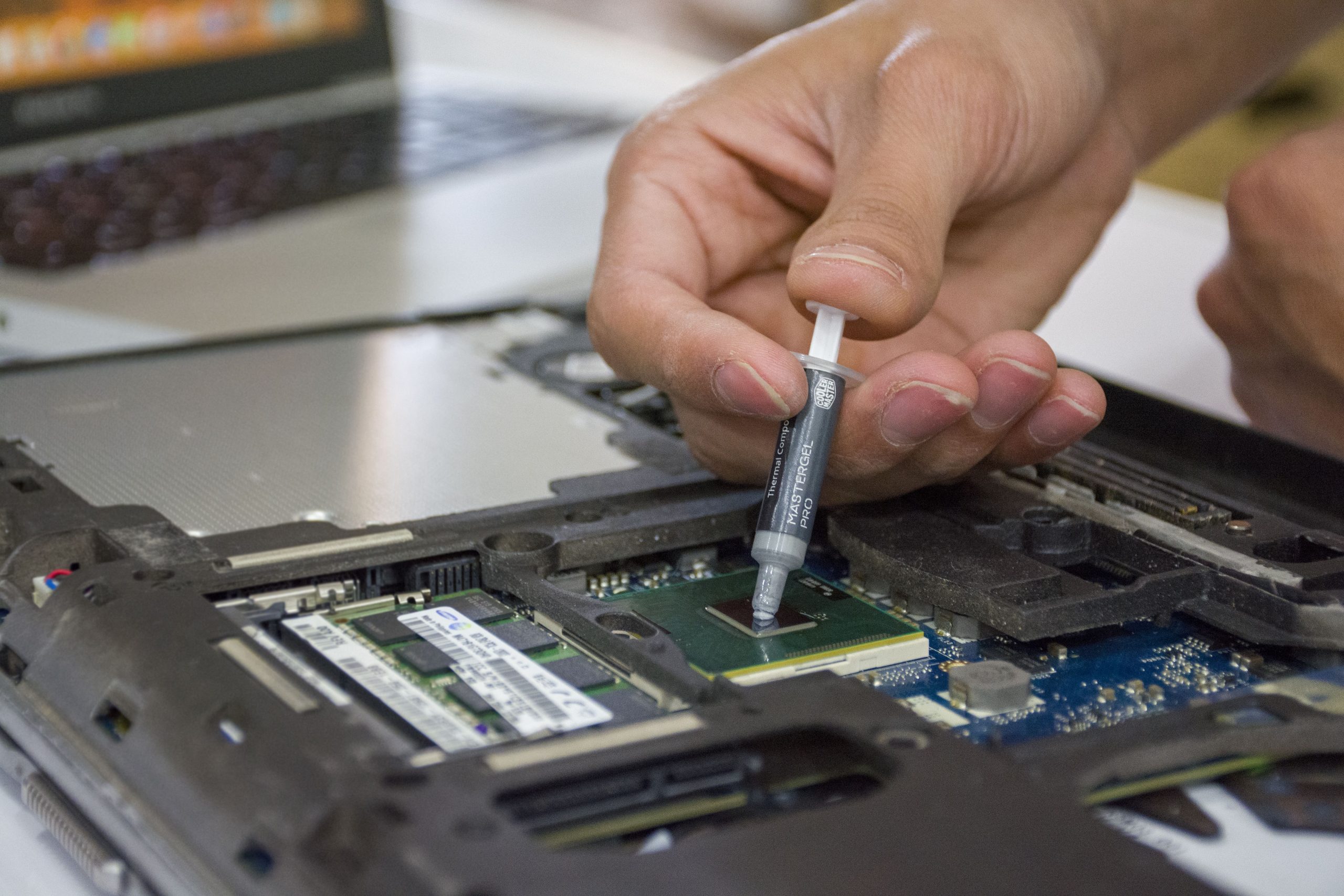
If the free fixes did not do it, spend a little where it works. A decent cooling pad drops temperatures by 5 to 10 degrees, but only if its fans line up with your laptop’s vents, so check the layout before you buy. Thermal paste is the other big one. The paste between your processor and its heatsink dries out after three to five years, and fresh paste can cut 10 degrees or more. Only try it yourself if you are comfortable opening the laptop and applying a pea-sized dot of new paste. A repair shop charges $50 to $80 for the job. Call a pro at once if temperatures stay over 100C after cleaning, the fan never spins, or the battery is swollen. If your laptop also shuts itself off when it gets hot, our guide to a laptop that keeps shutting down walks through the next steps.
Here is what each fix costs in the US:
- Can of compressed air: $5 to $8
- Decent cooling pad with fans that match your vents: $25 to $40
- Genuine replacement charger, correct wattage: $30 to $60
- Malwarebytes free scan: $0
- Thermal paste re-do at a repair shop: $50 to $80
- New fan fitted by a shop: $80 to $150
- New battery fitted by a shop: $80 to $200
Total if you start with the free and cheap fixes: under $15, and most laptops never need the expensive ones. Try the fixes in order and check your temperature after each one.
Conclusion
Most overheating laptops are not dying. They are dusty, smothered by a blanket, or running one greedy app in the background. Work through these fixes in order, check your temperature after each one, and you will usually find the culprit before you spend a dollar.
Keep the vents clear, cap the power when you do not need full speed, and treat a swollen battery as the emergency it is. Do that and your laptop stays cool, fast, and alive for years longer.
