

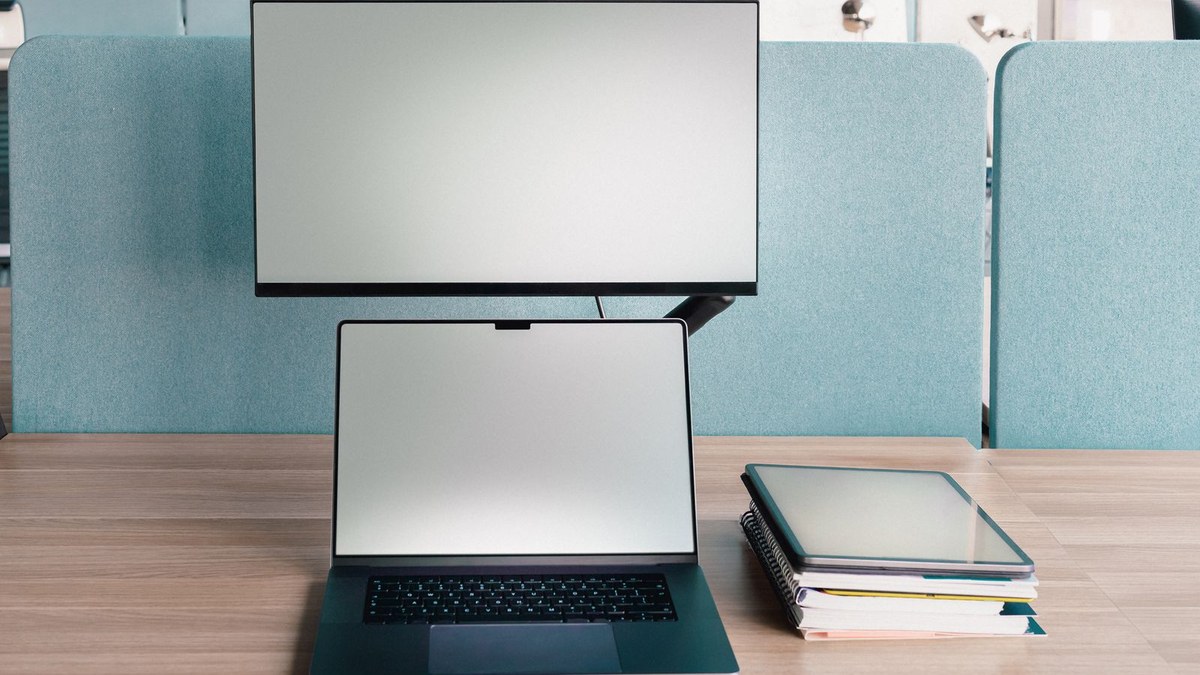
Why is my laptop not detecting a second monitor? You plug in the cable, the screen stays black, and Windows acts like nothing is there. It is one of the most common desk setup problems, and it is usually a connection issue, not a broken laptop. It usually takes less than half an hour to find the cause, and the fix is often free.
This guide starts with a 60 second check that tells you which problem you actually have. Then you get nine fixes in the order that solves the most cases first, with exact Windows and Mac steps and US prices for any cable or adapter you might need.
Read More: Laptop Screen Flickering? 9 Fixes That Stop It
First, Read the Screen: What the Failure Tells You
Before you change anything, look at what the second monitor actually shows, because each symptom points to a different fix. If the monitor says “No Signal”, the monitor is powered and waiting, but no video is reaching it. That means a cable, port, or input problem, so start with fixes 1, 2, and 5. If the monitor does not appear in Settings at all, Windows never saw it, which means the cable, port, adapter, or driver is at fault, so work through fixes 1, 5, and 7.
1. Prove the Monitor and Cable Actually Work
Half of all “not detected” cases are a dead cable or a dead monitor, and the fastest way to find out is a swap test. Unplug the video cable at both ends, look for bent pins or damage, then plug it back in firmly. If you have a TV with an HDMI port, plug the laptop into the TV. If the TV shows your desktop, your laptop and port are fine, and the problem is the monitor or the first cable.
2. Pick the Right Input on the Monitor
This is the single most skipped step, and it fixes more cases than any driver update. Monitors do not always switch inputs on their own. Use the physical buttons on the monitor, or its on screen menu, and select the input you are actually using. If the cable is in the DisplayPort socket, select DisplayPort. If it is in HDMI 2, select HDMI 2. Many monitors have two HDMI ports, and choosing the wrong one produces a convincing “No Signal” failure even when the PC is working perfectly.
3. Force Windows to Detect the Display
If the cable and input are right, make Windows look for the monitor. Press Windows key plus P to open the project menu and choose Extend. This is the step people miss most: a laptop set to “PC screen only” will ignore a second monitor completely, and Windows will not detect it until you change this. Then open Settings, then System, then Display, and click Detect under the display diagram. If the monitor appears as a grey box, click it, then choose Extend these displays under Multiple displays.
If the monitor appears but shows nothing, it may be positioned off your visible desktop. In the same Display settings page, drag the grey box next to your laptop screen so the two boxes touch.
Simple idea: press Windows key plus P and pick Extend before you touch anything else. It takes two seconds, and it is the fix most people skip.
4. Reset the Graphics Driver in 10 Seconds
If the monitor used to work and suddenly vanished after a restart, a sleep cycle, or a Windows update, reset the graphics driver before you reinstall anything. Press Windows key plus Ctrl plus Shift plus B. Your screens will flicker, which means the graphics subsystem restarted. This fixes a surprising number of cases, and it takes 10 seconds.
If that does not work, restart the laptop with the monitor already plugged in and powered on. Some laptops only scan for external displays during startup, and a hot plug after boot can be missed by older drivers.
5. Check the USB-C Trap Before You Blame Windows
A USB-C cable or port must support DisplayPort Alt Mode to carry video, and a charging cable will fit perfectly and carry nothing. Try a different USB-C port on the laptop, and try a different cable, making sure the cable is rated for video. If you connect through a dock or hub, unplug it and connect the monitor straight to the laptop. If it works directly, the dock or hub is the problem, not the laptop.
6. Fix Detection on a Mac the Apple Way
Macs fail differently, and Windows guides never cover this. On a Mac, open System Settings, then Displays, and hold the Option key. A Detect Displays button appears. Click it. If the monitor appears, choose Extend Display.
There are two Mac traps to know. First, clamshell mode, which is using a MacBook closed with an external monitor, only works when the MacBook is plugged into power. Second, base model Apple silicon Macs, the M1, M2, and M3 without Pro or Max in the name, support only one external display. If you already have one monitor working and a second will not appear, that is the limit, not a fault. The workaround is a DisplayLink dock or adapter, which uses software to add a second display.
7. Update, Reinstall, or Roll Back the Graphics Driver
Open Device Manager, expand Display adapters, right click your graphics adapter, and choose Update driver. Install the driver, restart, and test again.
If the problem started right after a driver or Windows update, roll back instead. In Device Manager, right click the graphics adapter, choose Properties, then the Driver tab, and click Roll Back Driver if it is available. Also update the monitor driver, which most people forget. In Device Manager, expand Monitors, right click the monitor, and choose Update driver. If the monitor worked before and broke after an update, a rollback fixes it in minutes.
8. Lower the Resolution and Refresh Rate
A monitor can be detected but stay blank because the signal asks for more than the cable can carry. In Windows, open Settings, then System, then Display, click the second monitor box, and set the resolution to 1920 by 1080 and the refresh rate to 60Hz. If the picture appears, your cable or adapter was the limit, not the laptop. For more on a laptop screen that stays black for other reasons, see Laptop Screen Black? 9 Fixes That Bring It Back.
9. Test the Dock, Adapter, and Port, Then Decide
If every fix so far has failed, test each link in the chain on its own. Connect the monitor directly to the laptop with a known good cable and no dock, hub, or adapter. If it works, add one link back at a time until it breaks, and you have found the faulty part.
Check the laptop port for damage too. Shine a light into the HDMI or USB-C port and look for bent pins, lint, or a loose connector that wiggles. Expect to pay 80 to 150 dollars at a local shop in the US for a port repair, or 200 to 400 dollars at a maker service center. If the laptop is still under warranty, file a claim first, since a port repair is usually covered.
What a working second monitor costs if you pay for it:
- HDMI 2.1 cable, 6 feet: $8 to $15
- USB-C to HDMI or DisplayPort cable: $12 to $25
- USB-C hub with video output: $25 to $60
- DisplayLink adapter for a second Mac display: $50 to $100
- Docking station with dual display support: $80 to $200
- Monitor firmware or driver help: free
- Laptop port repair at a local shop: $80 to $150
Conclusion
A laptop that will not detect a second monitor is almost never broken. Start by reading the screen, then work through the chain in order: prove the cable works, pick the right input, force Windows or your Mac to detect the display, and reset the graphics driver. Those four steps solve most cases in under half an hour.
If the monitor still does not appear, check the USB-C trap, update or roll back the driver, and lower the resolution before you spend money.
