

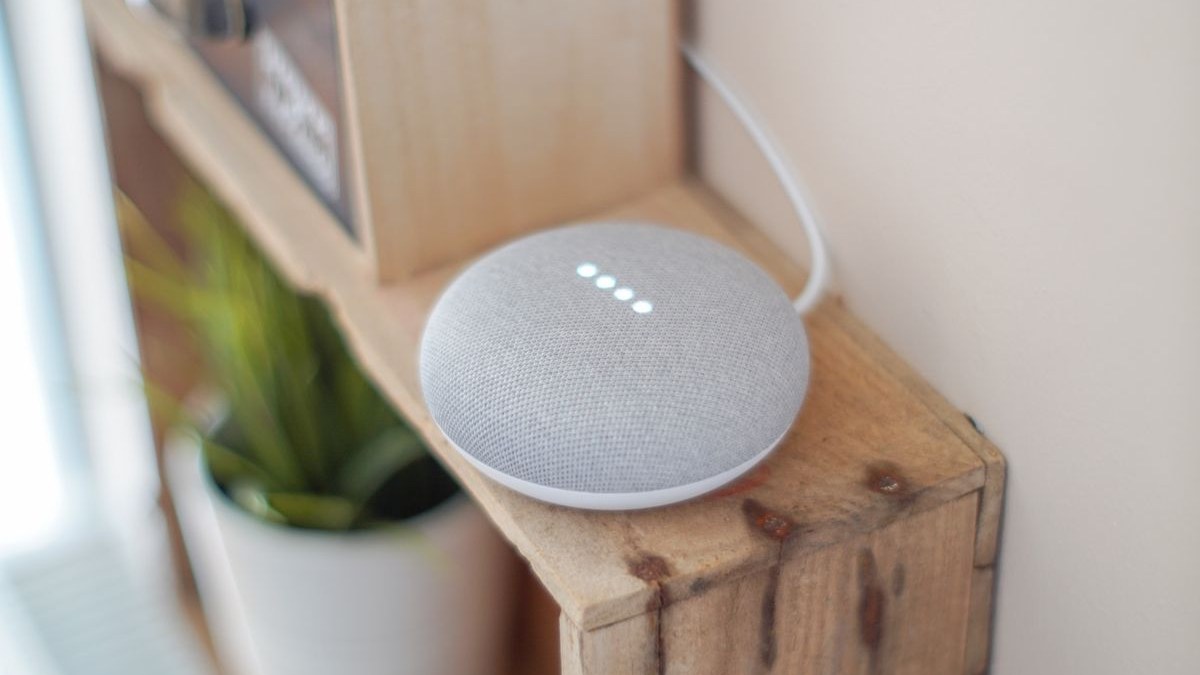
When your Google Home is not responding, the silence feels personal. You say “Hey Google” and nothing happens. No lights, no chime, no answer. Or the lights dance and the speaker just sits there, quiet as a rock. Before you blame the speaker, take a breath. Most of the time the cause is small: a muted mic, a tired router, or a setting you forgot you turned on. These nine fixes run in the order that solves the problem fastest, from 30-second checks to the full reset.
Read More: Alexa Not Responding? 9 Fixes That Get Her Talking
First, Work Out Which Kind of Silence You Have
Say “Hey Google, what time is it?” from three feet away and watch the lights. If nothing lights up, think power. If the lights turn on but the speaker says nothing, or says it cannot reach the internet, think WiFi. If the lights glow solid orange, the mic is muted. Personal questions ignored means Voice Match or the wrong account.
Open the Google Home app, tap the mic icon, and send the same command by voice or typing. If the app command works but your spoken words do not, the speaker’s microphone path is the problem. If the app cannot reach it either, the fault is in the network.
1. Check the Microphone Mute Switch
Every Google speaker has a physical mic switch, and when it is flipped, the microphones disconnect at the hardware level.
A muted speaker glows solid orange: four dots on a Nest Mini or Nest Audio, or a ring on the original Google Home. On the Nest Mini (2nd gen) the switch sits on the right edge near the power port. On the Nest Audio it is on the back, and on the original Google Home it is a round button on the back. Flip it back and try again. If the switch feels stuck, toggle it firmly a few times.
2. Get Closer and Raise the Wake Word Sensitivity
Walk to within three feet and try again at normal volume.
If it hears you sometimes and ignores you other times, raise the sensitivity. Open the Google Home app, tap the device, tap the settings gear, then tap Audio and “Hey Google” sensitivity. The slider runs from minus 2 to plus 2. Bump it to plus 1 or plus 2. If it starts answering the TV, drop it to minus 1 or minus 2. Only “Hey Google” and “OK Google” work. You cannot pick a custom wake word. Simple idea: stick a small label on the back of each speaker showing which way the mic switch faces.
3. Test the Speaker From the Google Home App
Open the Google Home app. If the speaker shows as offline, skip ahead to the WiFi fixes. If it shows online, tap the mic icon and send your command by voice or typing. If the app command works, your account and WiFi are fine, and the fault sits in the speaker. If the app command fails too, the speaker is not really online.
In the app, check Device information for the WiFi network name. If it shows the wrong network, the speaker is talking to the wrong router. Tap Forget this network and set it up again.
4. Reboot the Speaker the Right Way
A reboot clears stuck processes and reconnects the WiFi. Do not use the app reboot option if the app cannot reach the speaker. Pull the plug instead.
Unplug the power adapter from the speaker itself, not just from the wall, so the barrel connector comes out. Wait a full 60 seconds so the capacitors discharge completely. Plug the adapter back in and push the barrel connector until it sits flush, with no gap. Wait about 60 seconds, then test it.
5. Restart Your Modem and Router in the Right Order
If your router rebooted on its own overnight, after a power blip or a firmware update, the speaker may be sitting there disconnected and waiting.
Unplug both your modem and your router. Wait 60 seconds, then plug the modem back in first and wait until its lights settle. Then plug the router back in and give it two to three minutes to boot fully. Wait one more minute, then test the speaker. If every speaker went quiet at once, the network was the cause. If your smart TV drops off too, see Smart TV Not Connecting to WiFi? 9 Fixes That Work.
6. Check the Router Settings That Block Smart Speakers
Some routers actively block the traffic Google speakers need. First, AP isolation, sometimes called client isolation. It blocks phone-to-speaker traffic. Log in to your router, find the wireless settings, and turn it off.
Second, the guest network. A guest-network speaker cannot reach your phone. Move it to your main network. Third, band steering. Some routers push devices between the 2.4 GHz and 5 GHz bands, and Google speakers can drop off during the switch. If your router lets you split the bands, put the speaker on 2.4 GHz, which reaches farther through walls. Check your ISP router security too. Xfinity Advanced Security has blocked smart home traffic before. If the speaker works on a phone hotspot, your router is the blocker. Our guide to Phone Hotspot Not Working? 9 Fixes That Get It Back shows how to set one up.
7. Turn Off Downtime and Do Not Disturb Schedules
This fix explains the strangest pattern of all: a speaker that works all day and goes deaf every evening. Downtime schedules silence the speaker at set hours, and Do Not Disturb blocks responses too.
Open the Google Home app, tap the device, then the settings gear, and look for Digital Wellbeing or Downtime. If a schedule is active, the speaker will ignore you during those hours on purpose. Do Not Disturb is a separate toggle nearby. On, it silences everything except alarms and timers. Check Automations too. A family bedtime routine may mute every speaker at 10 PM.
8. Fix Voice Match, the Wrong Account, and the Wrong Home
If the speaker answers general questions but refuses personal ones, like your calendar, your reminders, or your music, Voice Match is the likely cause.
Open the Google Home app, tap your profile picture, then Assistant settings, then Voice Match. Check that Voice Match is on and that your voice model is current. If it is old, tap “Teach your Assistant your voice again” and re-record the sample phrases in a quiet room. If it keeps returning someone else’s calendar, turn Voice Match off.
Two other mix-ups cause the same symptoms. First, check the signed-in account. A second account means your calendar and music live elsewhere. And check the home name at the top of the app. A speaker can land in the wrong home after a move.
9. Check for an Outage, Then Remove and Re-Add the Speaker
If every speaker nearby went quiet at once, a Google outage may be the cause. Assistant runs in the cloud, so an outage silences every speaker in the region. Check Downdetector for a spike in reports. Outages usually clear in 30 minutes to two hours.
If there is no outage, remove and re-add the speaker. In the Home app, open the device settings, scroll down, and tap Remove device. Then tap +, Set up device, New device, and follow the prompts.
If that still fails, factory reset as a last resort. On the original Google Home, hold the mic mute button on the back for 15 seconds. On the first-gen Mini, hold the reset button on the bottom for 15 seconds. On the Nest Mini (2nd gen) and Nest Audio, slide the mic switch off, then press and hold the center for 15 seconds. The speaker will announce the reset. Set it up again from scratch. If a factory reset does not fix it, the microphone array or the WiFi chip has likely failed.
Here is what each fix could cost you in the US:
- The mute switch, reboot, router restart, Downtime, and Voice Match fixes: $0
- A replacement original power adapter: $15 to $25
- A new Nest Mini (2nd gen): about $49, often $29 to $35 on sale
- A new Nest Audio: about $99, often $59 to $79 on sale
- A mesh WiFi system for weak coverage: $100 to $300
- A warranty replacement (1-year limited warranty): $0
Total: most cases cost $0. A speaker that works on a hotspot needs a router fix, not a new speaker.
Conclusion
A silent Google Home is rarely a dead speaker. Work the list in order, starting with the mute switch and the reboot.
If you reach the factory reset and the speaker still ignores you, check the warranty before you buy a replacement. You can confirm it in the Home app under your profile, then Help and feedback, then Contact us. Out of warranty, a new Nest Mini at around $49 beats any repair.
