

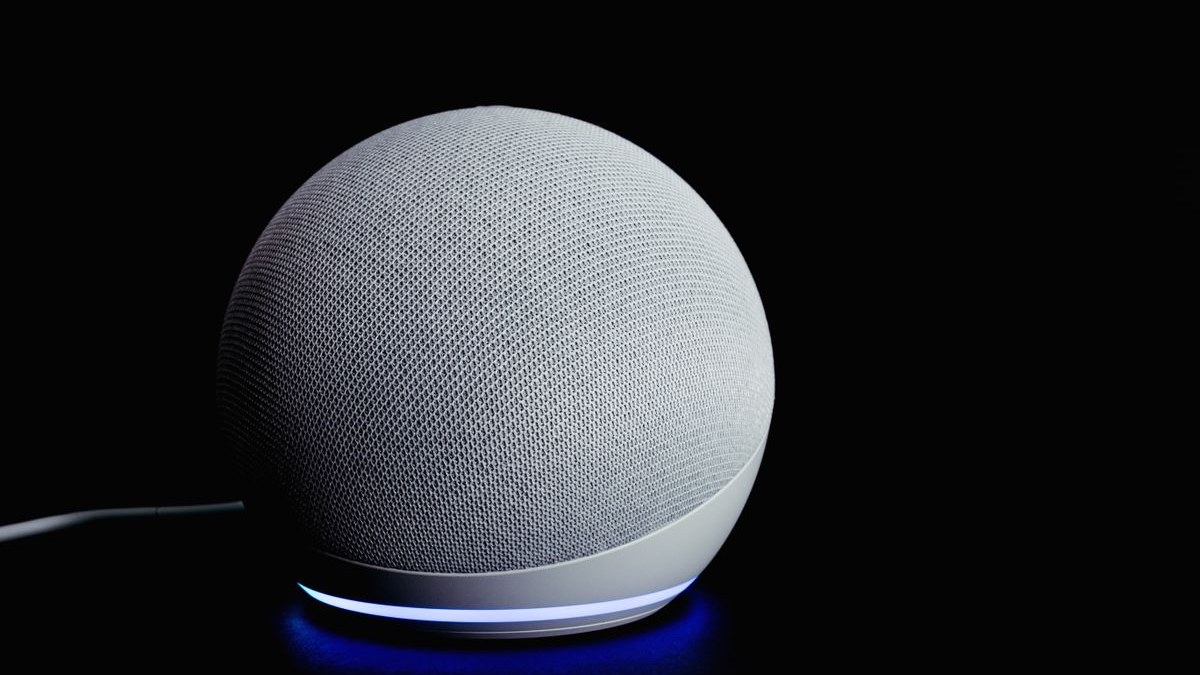
You say “Alexa, turn on the lights” and nothing happens. No blue ring, no voice, no beep. Your Echo just sits there, silent, while you repeat yourself like you are talking to furniture. Alexa not responding is one of the most common Echo problems in the US, and the fix is usually a 30-second job once you know where to look. Most guides hand you a random list of steps and hope one sticks. This one starts with a 60-second test that tells you exactly which fix you need, then walks through the nine fixes that solve the problem for almost every Echo, Echo Dot, Echo Show, and Echo Pop owner. Work through them in order and stop the moment Alexa answers again.
Read More: Smart TV Not Connecting to WiFi? 9 Fixes That Work
Run This 60-Second Test Before You Fix Anything
Look at the light ring on top of your Echo first. Its color is a diagnosis by itself. Solid red means the microphone is muted. Spinning orange means the Echo is hunting for Wi-Fi. Pulsing yellow means a notification is waiting, not an error. No light at all usually means no power or a dead adapter.
Next, press the Action button, the button with a dot on top. If Alexa speaks or the ring lights blue, the speaker and its connection are fine, and the problem is the wake word or the microphones. If nothing happens, the fault is power, mute, or Wi-Fi. Finally, say “Alexa, did you hear me?” If she answers, the mics work.
1. Unmute the Microphone (the Red Ring Trap)
A solid red ring around the base means the microphone is off, and Alexa cannot hear a word you say. Press the microphone button on top, the one with a crossed-out mic icon (on an Echo Show, the mic and camera button), and the red ring should switch off.
This is the number one cause of a silent Echo. A child presses the button while playing, or someone wipes the top during cleaning. Check the Alexa app too. Open Devices, pick your Echo, and tap the microphone setting back on.
2. Read the Light Ring Like a Dashboard
Solid red means muted. Spinning red means a device error or a lost connection. Spinning orange means the Echo is in setup mode or trying to join Wi-Fi. Pulsing yellow means a notification is waiting, so say “Alexa, what are my notifications?” to clear it. Spinning blue means the Echo is starting up or thinking, and green means a call or Drop In is active.
A blue ring that spins for minutes without an answer means the Echo heard you but cannot finish the request, usually because its internet link is broken.
3. Restart It the Right Way (and Check the Power Adapter)
Unplug the Echo from the wall outlet, wait a full 30 seconds, then plug it back in. Wait for the ring to spin orange, then blue, then go dark. This clears the temporary software glitches behind most random silences.
Use the power adapter that came in the box. A phone charger or a cheap third-party adapter often cannot deliver the steady 15 watts an Echo Dot needs, so the speaker boots, then drops out, then goes silent again. If your Echo sits on a power strip or a switched outlet, plug it straight into a wall outlet for the test.
4. Fix the Wi-Fi Link (Bands, Passwords, and WPA3)
Open the Alexa app, tap Devices, pick your Echo, and check the Wi-Fi network it shows. If it says Offline, tap Change next to Wi-Fi Network and reconnect. A router password change is the classic cause. The Echo keeps trying the old password forever and never tells you.
Try the other Wi-Fi band if your router broadcasts both 2.4 GHz and 5 GHz. Echos work best on 2.4 GHz at distance. If your router is set to WPA3-only security, older Echo models cannot join at all, so switch it to WPA2/WPA3 mixed mode. Guest networks can block Alexa too. Test it on your phone hotspot for a minute. If it answers there, your home Wi-Fi is the problem, not the Echo.
Simple idea: before you reset anything, ask a second Echo or the Alexa app on your phone the same question. If the app answers, the problem lives inside that one Echo.
5. Check the Wake Word (It Is Set Per Device)
The wake word is set per device, not per account, so one Echo can listen for “Alexa” while another waits for “Computer” or “Ziggy”. Open the Alexa app, go to Devices, pick the silent Echo, then open Device Settings and Wake Word.
Test it by standing three to six feet away and saying the wake word clearly, then say “Alexa, what time is it?” If the Action button wakes Alexa but your voice does not, the wake word is almost always the answer.
6. See What Alexa Actually Heard
Open the Alexa app, tap More, then Alexa Privacy, then Review Voice History. Pick the silent Echo and look at your last few requests. If the entries are empty, the microphones never picked you up, and the problem is the mic or the mute button.
Say your commands a little slower and closer to the speaker, and drop the extra words. “Alexa, lights on” beats a long sentence mumbled from the kitchen. Say “Alexa, switch profiles” and try again, since profiles carry different settings.
7. Turn Off the Quiet Modes (Whisper, Brief, and Do Not Disturb)
Three quiet modes make Alexa look dead when she is actually working. Whisper Mode makes her answer in a whisper, which sounds like silence from across the room. Say “Alexa, turn off Whisper Mode” or switch it off under More, then Settings. Brief Mode replaces spoken answers with a short beep, so turn that off in the same screen.
Do Not Disturb is the third one, and it shows as a solid purple ring. It blocks calls, messages, and some announcements. Open Devices, pick your Echo, and turn it off. Check your Routines too, because one can switch Do Not Disturb on every night at the same hour.
8. Move It Away From Noise (and Its Twin)
Echo microphones are good, but they cannot beat a loud room. A TV, a dishwasher, an air conditioner vent, or music playing right next to the Echo will drown out your voice. Move it at least eight inches from any wall and away from other speakers.
Two Echos in earshot cause a stranger problem. Amazon’s Echo Spatial Perception is supposed to pick the nearest speaker, but when two are almost the same distance away, neither may answer, or the wrong one does. Check Bluetooth too. If your Echo is paired with a Bluetooth speaker in another room, Alexa’s answers go there instead. Forget it under Devices, then Bluetooth Devices, using our Bluetooth not connecting guide.
9. Update, Deregister, and Reset (the Last Resort)
If Alexa still takes voice commands, say “Alexa, check for software updates” and let her install anything waiting.
If updates do not help, deregister the Echo and set it up again. In the app, open Devices, pick your Echo, scroll to Deregister, and confirm. Then tap the plus icon and choose Add Device.
A factory reset is the final step. On an Echo or Echo Dot (3rd, 4th, or 5th gen), hold the Action button for 20 to 25 seconds until the ring turns orange. On an Echo Pop, hold Volume Down and Volume Up together for 15 seconds. On an Echo Show, open Settings, then Device Options, and pick Reset to Factory Defaults, or “Reset, but Retain Smart Home Device Connections” on newer models. Set it up again afterward.
What a fix or a replacement costs in the US:
- A restart, a wake word change, and every setting in this guide: $0
- A genuine Amazon 15W power adapter: $10 to $15
- Echo Dot (5th gen): $49.99
- Echo (4th gen): $99.99
- Echo Show 5: $89.99
- Amazon support chat and phone help: free
- Trade-in for a dead Echo: up to 20% off a new Echo
Amazon does not offer out-of-warranty Echo repairs, so a dead speaker means a replacement, not a repair bill.
Conclusion
Most silent Echos come back to life in under five minutes. Check the red ring, restart the speaker, and fix the Wi-Fi link, and you will solve the problem nine times out of ten. The other fixes cover the odd cases: a changed wake word, a quiet mode you forgot about, or a second Echo stealing the request.
If none of the nine fixes work and a factory reset still leaves the Echo silent, stop spending time on it. Contact Amazon support from the Alexa app, ask about a warranty replacement, and use the trade-in credit toward a new Echo.

1 Comment
Pingback: Google Home Not Responding? 9 Fixes That Get It Talking